One song won't display lyrics + Remote User security control

Hi

I sent this to Leo via email but didnt hear back so I am posting here in case this is what I should have done anyway! :slight_smile:

I have created lyrics using you generator for any songs and all have been fine. Today I did this one and for some reason they do not display in the browser. See screenshot
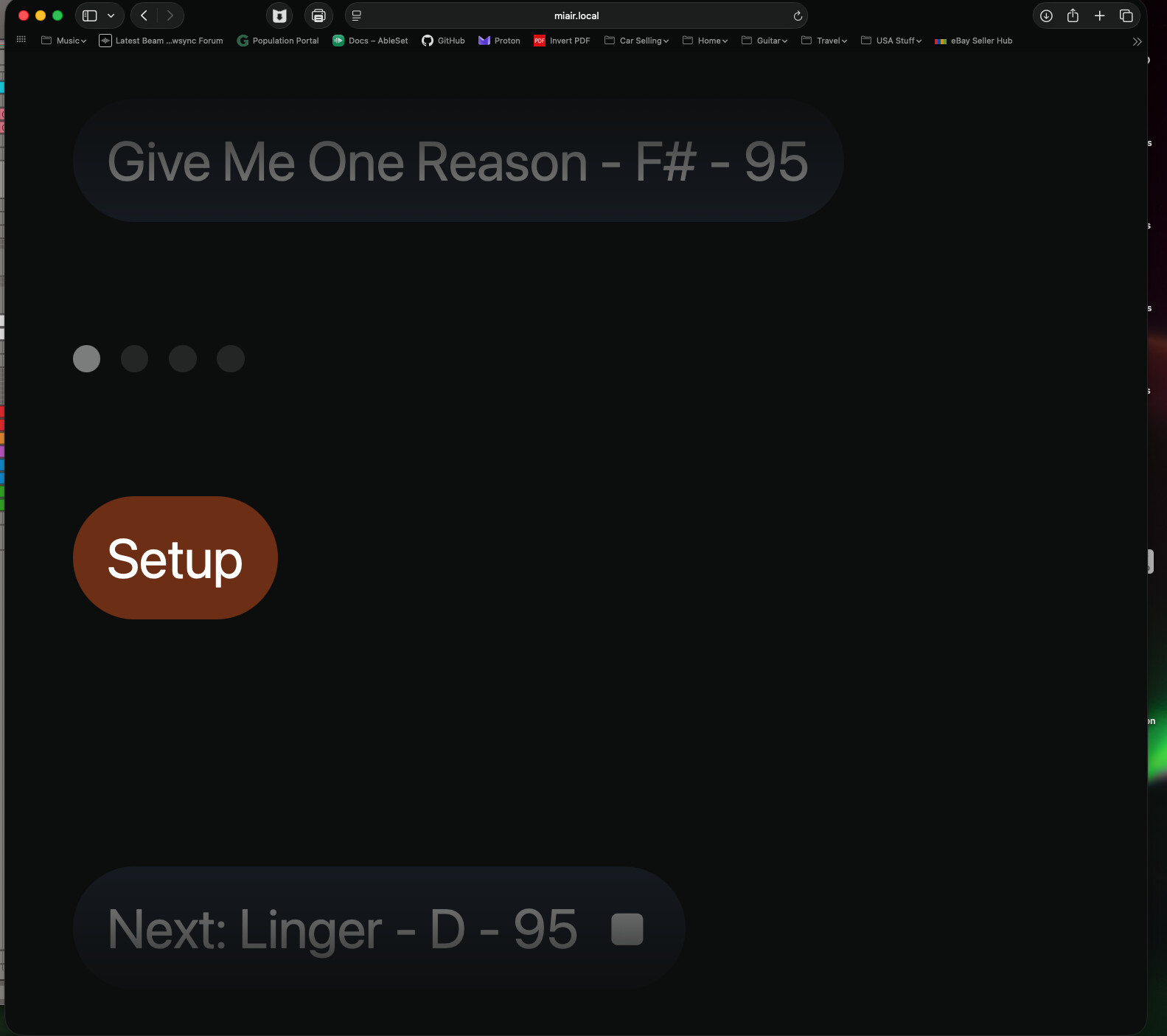
All I get is the first section marker (Setup) and a marker for the title of the next song in the setlist. No lyrics or chords for anything in the song.

I attach here the ALS file in question.

Give Me One Reason - F# - 95 4.48.als (218.6 KB)

I sent an iCloud link to the log package to Leo in the email.

Also…

I have a question about using Ableset in a browser for remote users. I want to set up Ableset on their iPads so we can finally get rid of the music stands!!! (I hate music stands on stage! :slight_smile: )

I only want them to be able to see the lyrics page as I select the songs as the set progresses. I can see how to set their device to disable navigation and set the page to Lyrics, all fine. But the issue is that even with navigation disabled, they still get the little cross in the top right corner of the lyrics page to close the lyrics page. If they press that they go back to the main setlist but as navigation has been disabled they cant then press on ‘Lyrics’ to go back to the lyrics page.

Is there some way I can disable their ability to close out of the lyrics page pls?

Many thanks

Mark

Hey @GuitarMark,

Sorry for the delayed response and thank you for your patience :slightly_smiling_face:

I was able to reproduce this lyrics issue you’re experiencing. The Setup clip on your Sections track starts a tiny bit before the song locator (about half a thousandth of a beat), so it’s invisible at normal zoom. In a multi file project, that prevents the lyrics from showing up.

To fix it:

  1. Make sure Snap to Grid is enabled in Live (Cmd+4).
  2. Zoom in on the start of the song and move the Setup clip so it starts exactly on the song locator.
  3. Save the file and load the song again in AbleSet.

After that, both lyrics tracks should display normally. I’ll pass this along so it can be looked into.

About keeping the iPads on the Lyrics page

Lock Navigation only hides the navigation bar, so it isn’t meant to fully restrict a device. Since your band members only need to read the lyrics, the full device lock is what you’re after. It locks the entire UI, so nothing on the page can be tapped:

  1. Open the Devices page in AbleSet and click on the iPad.
  2. Under Page, use Switch Page to send it to the Lyrics View first.
  3. Enable Lock Browser (or Lock App if they’re using AbleSet Connect).
  4. Enable Hide Lock Button so they can’t unlock it themselves.

You can also do this with OSC, e.g. from a MIDI mapping or an OSC track:

/devices/showPage Mark-iPad lyrics;
/devices/lock Mark-iPad

Replace Mark-iPad with the device’s name or IP address. If you want a device to show a specific lyrics track, add the track’s slug (the end of the Lyrics View URL), e.g. lyrics/lyrics-chords.

You can also see these remote options in action in the official tutorial.

Let me know how this behaves on your end.

Hi there @agustinvolpe

Thanks for the excellent replies, as always :slight_smile:

Re the security process, that will work but locking the device entirely is a bit over the top.

May I suggest that if navigation is disabled, the ability to navigate away from the lyrics page back to the main screen should also be disabled, especially as once the user does navigate back to the main screen, they are then unable to go back to the lyrics page as all the navigation buttons are missing.

Just a thought

Thank you

Mark

Hey @GuitarMark,

Thanks for the suggestion!

In the meantime, here’s an approach that should give you exactly what you’re after: build two Canvases for your band members, one with the lyrics and one with the setlist, and let them switch between only those two using a link button.

1. Create the Canvases

Lyrics Canvas

  • Add a Lyrics element, pick the lyrics track you want them to see, and enable Locked so it can’t be scrolled away by accident.
  • Add a Button, set its type to Link, and point it to your Setlist Canvas.

Setlist Canvas

  • Add a Setlist element and enable Locked so songs and sections can’t be triggered by tapping the list.
  • Add a Link button that points back to your Lyrics Canvas.

For the Link field, open the target Canvas and copy its path from the browser’s address bar (it starts with /canvas/).

In the Canvas Settings of both Canvases, turn off Show Overlay Buttons. That hides the Edit and Close buttons, so there’s no way out of the Canvas.

2. Send the iPads there and lock navigation

From the Devices page, click each iPad, use Switch Page to send it to the Lyrics Canvas, and then enable Lock Navigation.

That way they can move between lyrics and setlist with your buttons, but they can’t reach any other page or trigger anything in the setlist.

Note that the Locked toggles on the Lyrics and Setlist elements require AbleSet Beta 3.2.

Would that work for your use case?

Great reply as always.

I’m not up to speed on the canvas yet. Been meaning to try and learn how to use it, this could be the thing to start me off! :slight_smile:

BTW, is there a ‘total newbs guide to canvas’ anywhere. All the info I have seen so far seems to assume you are a Javascript programmer already and know where to place all the code snippets etc. Something that treats me like I am 11 and just starting out :wink:

Hey @GuitarMark,

Glad it helped!

By the way, you can also try AbleSet 3.2.0 beta 18, which adds support for multiple Sections tracks in the same project.

The best place to start is the official Canvas tutorial. It builds a Canvas step by step, starting from an empty page: https://youtu.be/pRs1kQAUBzU

To get you started, I’ve put together the two Canvases from my previous reply so you can paste them straight in Canvas Edit mode:

1. Lyrics Canvas

  1. Open the Canvas tab and create a new Canvas called Band Lyrics.
  2. Click the Copy button on the code block below, then press Cmd+V in the Canvas editor.
  3. In the Canvas Settings on the right, turn off Show Overlay Buttons.
[{"type":"button","buttonType":"link","label":"Setlist","href":"/canvas/band-setlist","icon":{"type":"preset","icon":"playlist"},"textColor":{"type":"preset","color":"white"},"backgroundColor":{"type":"preset","color":"cyan"},"font":{"size":32,"bold":true},"suppressLinkHighlight":true,"x":20,"y":20,"width":260,"height":90,"zIndex":20},{"type":"lyrics","locked":true,"showNextSong":true,"showSectionDescriptions":false,"trackSlug":"lyrics","x":20,"y":130,"width":984,"height":618,"zIndex":10}]

2. Setlist Canvas

Same steps, this time with a new Canvas called Band Setlist:

[{"type":"button","buttonType":"link","label":"Lyrics","href":"/canvas/band-lyrics","icon":{"type":"preset","icon":"microphone"},"textColor":{"type":"preset","color":"white"},"backgroundColor":{"type":"preset","color":"cyan"},"font":{"size":32,"bold":true},"suppressLinkHighlight":true,"x":20,"y":20,"width":260,"height":90,"zIndex":20},{"type":"setlist","locked":true,"x":20,"y":130,"width":984,"height":618,"zIndex":10}]

3. Explore how it’s built

Once they’re pasted, click on each element in the editor and have a look at the sidebar on the right. That’s where everything is configured:

  • The Lyrics element shows your LYRICS track. To show the other one, just pick it from the Track dropdown.
  • Both the Lyrics and the Setlist elements have Locked enabled, so they can’t be scrolled or tapped by accident.
  • The Link buttons point to the other Canvas. If a button doesn’t take you there, open the target Canvas and check that the path in the browser’s address bar matches the button’s Link field.
  • If the elements don’t fit the iPad screen, open the Canvas on the iPad and pick This Device under Size, then drag the corners of the elements to resize them.

After that, send the iPads to the Band Lyrics Canvas and enable Lock Navigation from the Devices page, as described in my previous reply.

Let me know how it goes!