Hey Sebastian!
There are actually a few ways to handle this depending on what you want to control: AbleSet’s track groups (if you’re using AbleSet 3 beta), Ableton’s mixer, or both.
Let me break it down 
 1. Using an OSC Track (+OSC)
As long as you create a track in Live and add +OSC to its name, AbleSet will treat it as an OSC track — no extra plugins needed.
If your goal is to program timed mute/unmute actions directly on the Arrangement timeline, this works perfectly:
My OSC Track +OSC
Then you can place MIDI clips on that track to trigger AbleSet OSC commands at exact moments.
If you’re using AbleSet 3 beta, and your tracks are flagged with +G, you can control whole groups using AbleSet’s native mixer commands:
/mixer/[group name]/mute [0|1|toggle]
/mixer/[group name]/solo [0|1|toggle]
/mixer/[group name]/fadeIn [ms]
/mixer/[group name]/fadeOut [ms]
More OSC commands are documented here.
2. Using AbletonOSC
If you want to control individual Ableton tracks (not just AbleSet’s Track Groups), then AbletonOSC gives you full access to Live’s mixer.
You can get it here.
To install:
-
Unzip and rename the folder to AbletonOSC.
-
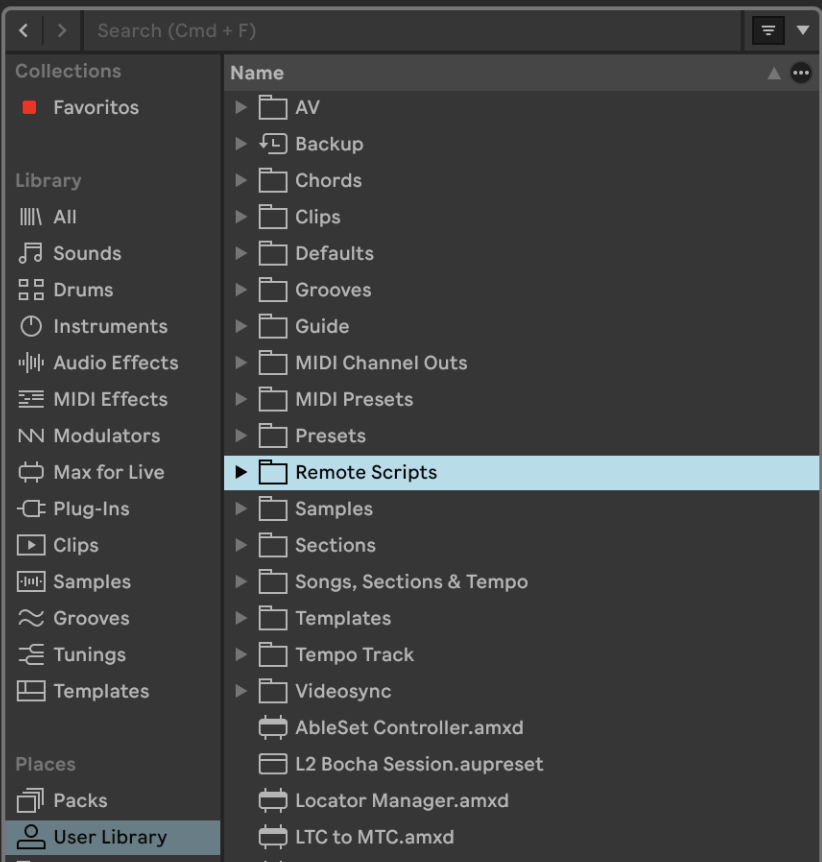
Drop it into User Library → Remote Scripts

(so Live recognizes it as a Control Surface)
-
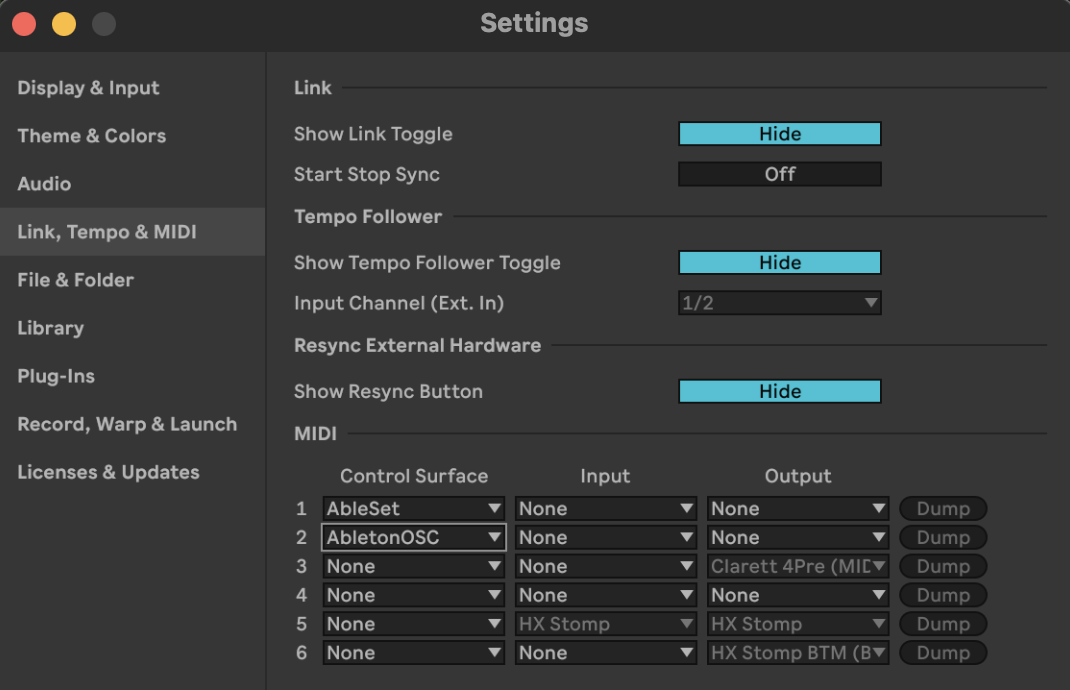
After this you might have to restart Live. Then open Live → Settings → Link/Tempo/MIDI and select AbletonOSC as a Control Surface
(AbletonOSC listens on port 11000 — as Léo mentions here) -
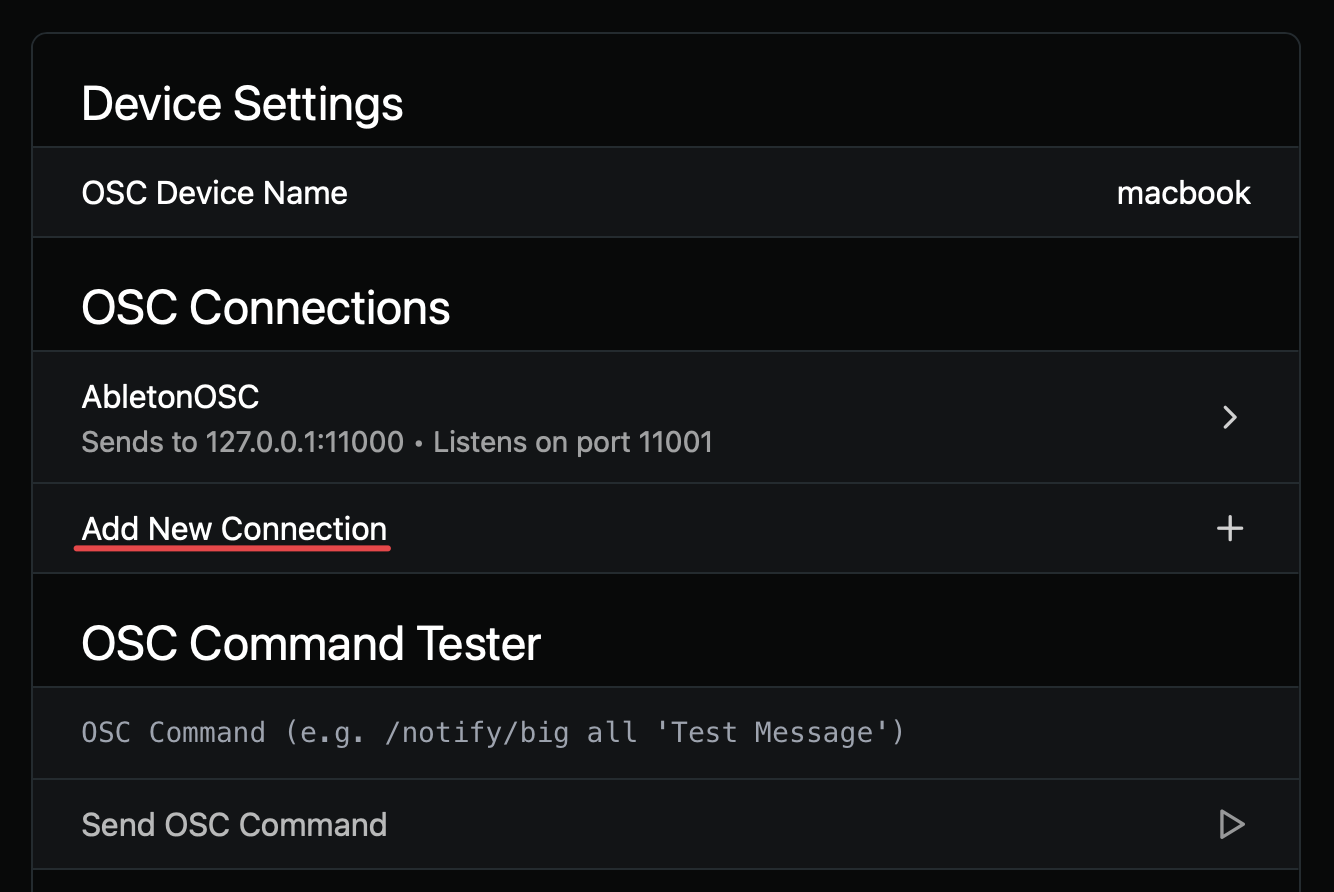
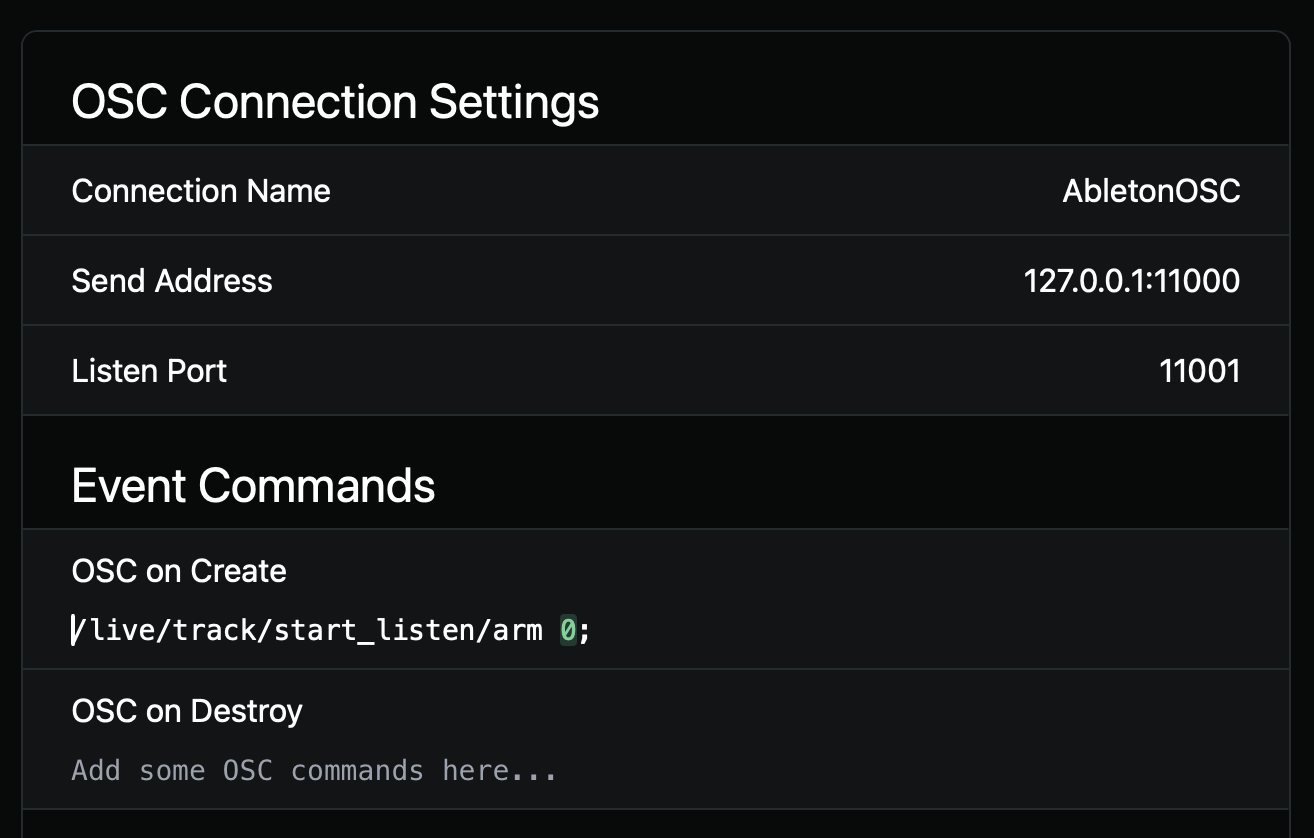
In AbleSet’s settings, add a new OSC Connection:
Once active, you can mute/unmute any track using:
/live/track/set/mute track_id mute
Where:
track_idstarts at 0 (so even though Ableton shows tracks starting at 1, the OSC index is zero-based)mute=1(muted) or0(unmuted)
Example
Mute Track 1 in Ableton Live:

127.0.0.1:11000/live/track/set/mute 0 1
If you want to mute Track 10, the index would be 9:
127.0.0.1:11000/live/track/set/mute 9 1
And so on.
Hope this helps, I’m looking forward to your reply!
Agus