Shared Variable Help

Describe your issue here:

Hey all,

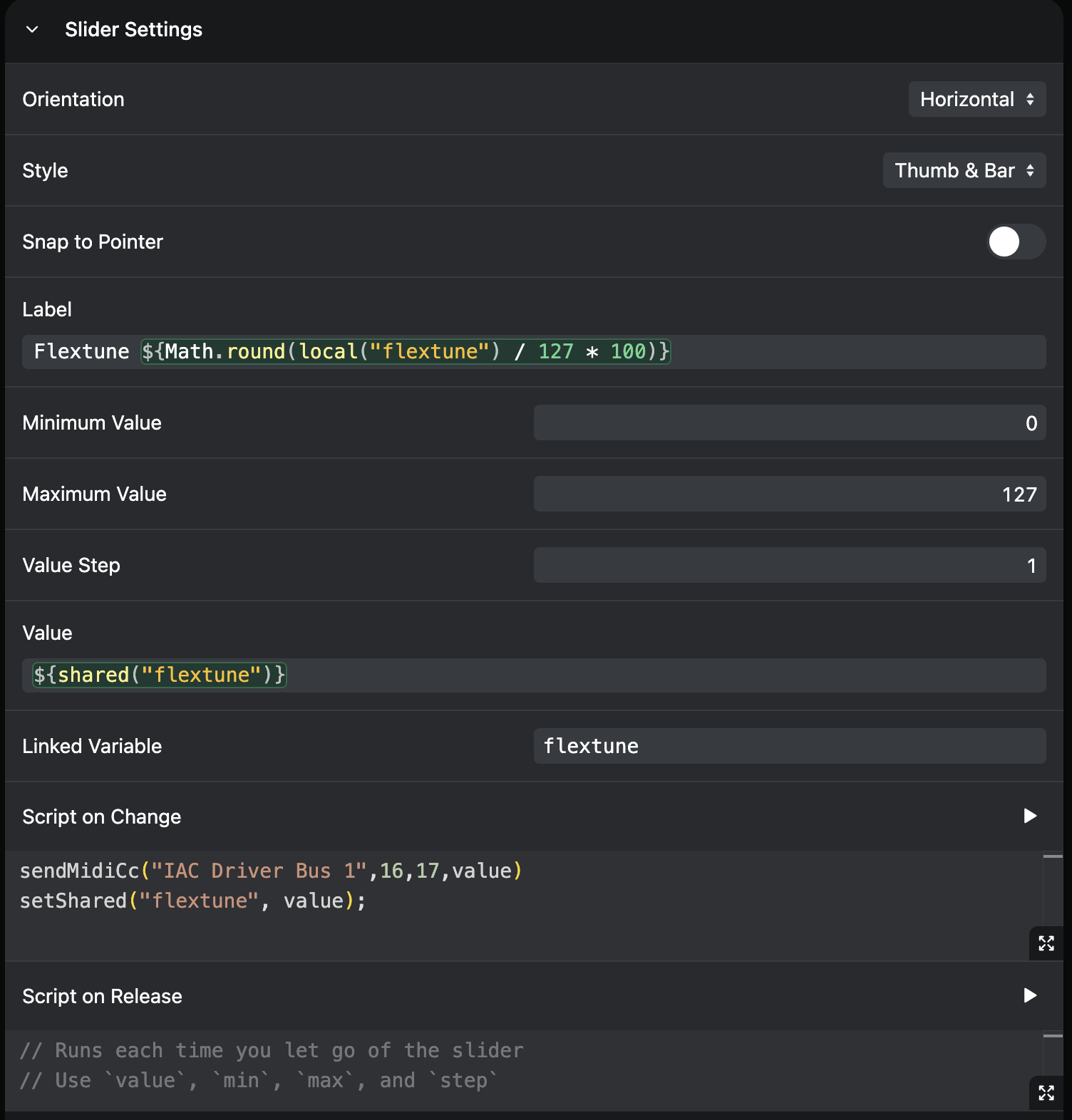
I’ve been playing around with Canvas and trying to replace my dependency on TouchOSC. I’ve added a pair of faders to control retune and flextune to my canvas and have got it sending MIDI CC over the IAC Bus just fine. Currently, I’ve been trying to get Canvas to receive feedback from Ableton updating my faders when my automation clips launch at the top of the song. I think the way to accomplish this is with shared variables but the problem I’m having is I’m not sure if I’m declaring the shared variable correctly. The fader is still sending CC just fine but I can’t get it to receive any changes. I’ve tried a bunch of different methods so it may look a little messy but any help would be appreciated.

Pics for reference.

Please fill out these values to make it easier to troubleshoot:

  • OS and Version: macOS 12.5.1
  • Version of AbleSet: 3.0.9
  • Version of Ableton Live: 12.2.7

Hey @JasonBentch,

The MIDI CC path is one-way from Canvas’s perspective — it can send CC out via the IAC bus, but Canvas can’t receive incoming MIDI CC to update a slider. The way to close that feedback loop is AbletonOSC, which lets AbleSet read your plugin parameters directly. This requires the latest beta, which includes improvements to how AbleSet handles AbletonOSC device parameter values — make sure you’re on 3.1.0-beta-7 before setting this up.


1. Set up the AbletonOSC connection

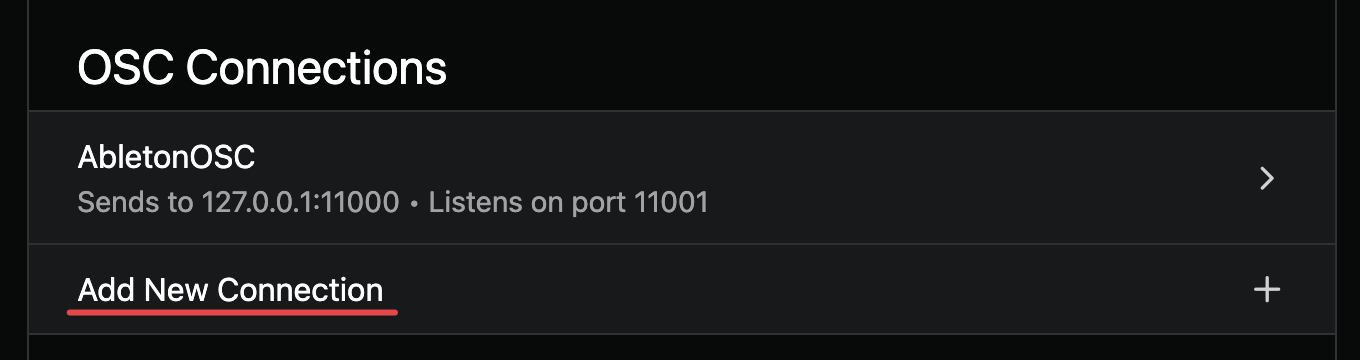
If you haven’t already, install AbletonOSC as a Control Surface in Live, then in AbleSet go to Settings → MIDI Mapping, OSC & Scripting → OSC Settings and add a new connection:

  • Name: AbletonOSC
  • Send Address: 127.0.0.1:11000
  • Listen Port: 11001

2. Find your parameter indices

All indexing in AbletonOSC is zero-based (first track = 0, first device = 0, etc.). To find the right parameter index for your flextune plugin, use the OSC Command Tester at the bottom of the OSC Settings page and send:

:AbletonOSC/live/device/get/parameters/name [track_index] [device_index]

This returns a list of all parameter names — find where flextune falls in that list and note its index.


3. Subscribe to the parameter

In your AbletonOSC connection settings, add this to the OSC on Create field:

/live/device/start_listen/parameter/value [track_index] [device_index] [param_index]

This tells AbletonOSC to push updates to AbleSet whenever that parameter changes — including from automation.


4. Update the slider’s Value template

With the connection set up, you can read the parameter value directly in your slider’s Value field:

${Math.round(osc(":AbletonOSC/live/device/[T]/[D]/get/parameter/[P]/value") * 127)}

AbletonOSC sends parameter values as 0.0–1.0, so multiplying by 127 maps it to your slider’s range. You can verify the exact path by checking the OSC Values list at the bottom of your AbletonOSC connection settings after triggering a parameter change.


5. One small thing in your current setup

Your Label template uses local("flextune") but your script writes to shared("flextune") — those are separate variable spaces, so the label won’t update correctly. Change it to:

Flextune ${Math.round(shared("flextune") / 127 * 100)}

Your Script on Change is already correct for the send direction — manual drags will still fire the CC out and update the shared variable.

Would that work for your setup?
I think this almost works, the issue now is that Ableton isn’t actually hosting the device. I have AT hosted in LiveProfessor, Ableton is sending out MIDI CC on MIDI Channel 16 down CC’s 14 (retune) and 17 (flextune). I’m sure I can get the device parameters if I loaded a ‘dummy’ instance on AT in Ableton just for this purpose, but I’m trying not to way down my session more than I have to. Do you know of a way to just get the MIDI CC that’s being sent out of Ableton and send that back to Canvas over AbletonOSC?

Or the better question is: does it make more sense to bypass Ableton entirely and is it possible to receive OSC from the AT plugin in LiveProfessor?

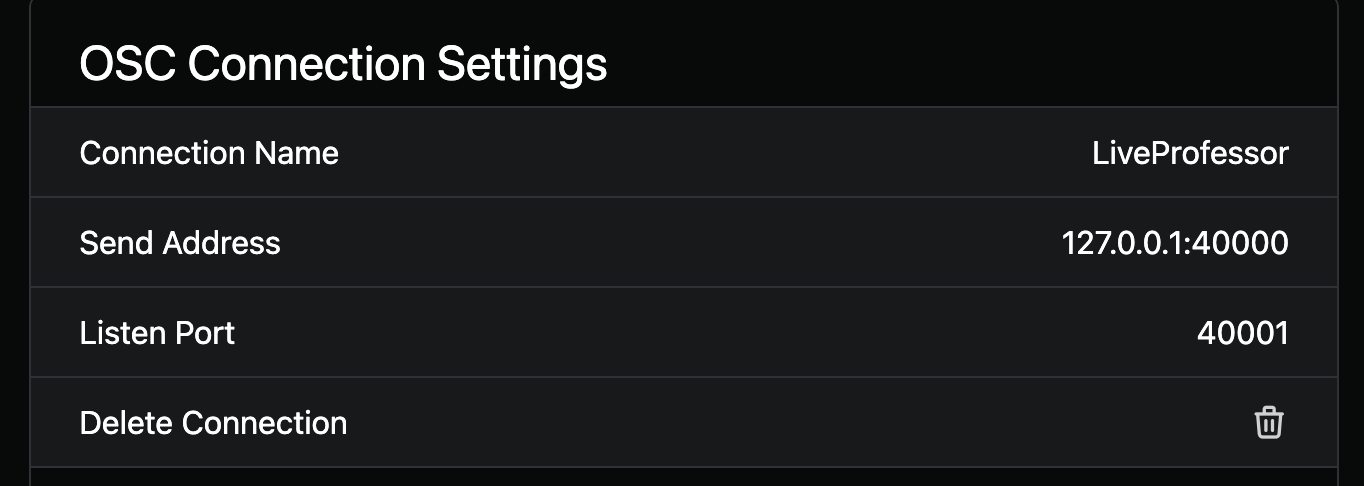
That would work better, I think! To set this up, open AbleSet’s OSC settings and click “Add New Connection”:

Set the connection name to “LiveProfessor” or any other name you prefer, set the Send Address to “127.0.0.1:40000” and the Listen Port to “40001”. You can use different ports if you prefer, just make sure they aren’t used by any other program on your computer.

In LiveProfessor, click the controller map edit button in the top toolbar:

In the window that opens, click the plus icon and then select OSC:

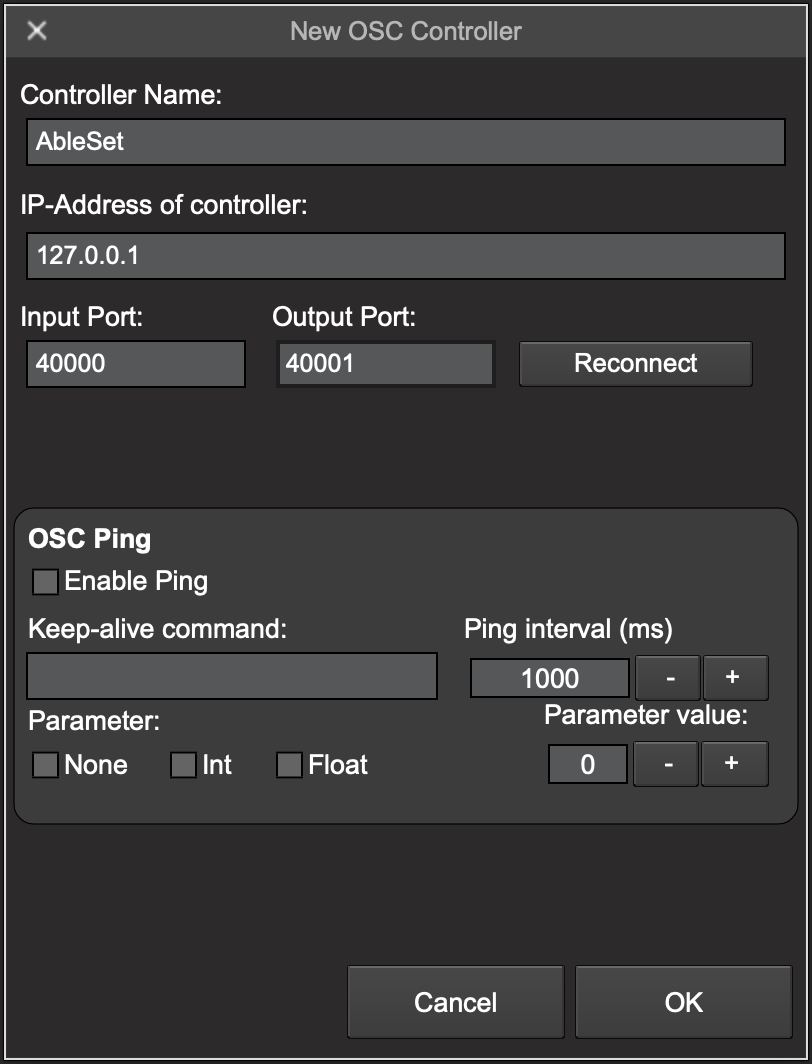
You can now set up the connection with AbleSet by setting the IP address to “127.0.0.1”, the input port to “40000” and the output port to “40001”:

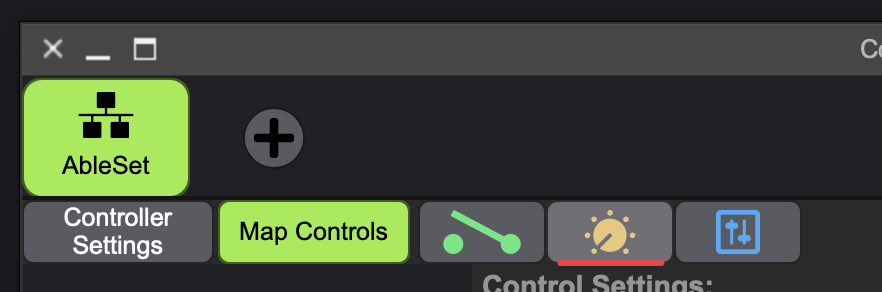
Click OK to create the connection. Then, click the blue “Edit Hardware” button and the knob button that appears to create a new virtual knob:

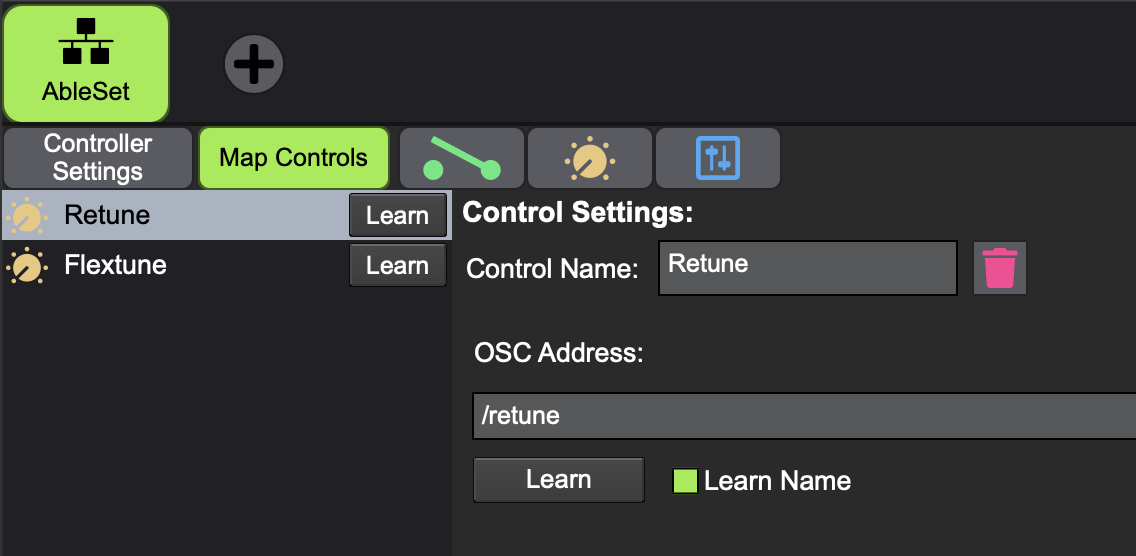
You can set its name to whatever you like. I’ll use “Retune” here and set the OSC address to “/retune”:

Repeat this for as many controls as you need. You can also create buttons or faders depending on what kind of parameter you’d like to map it to.

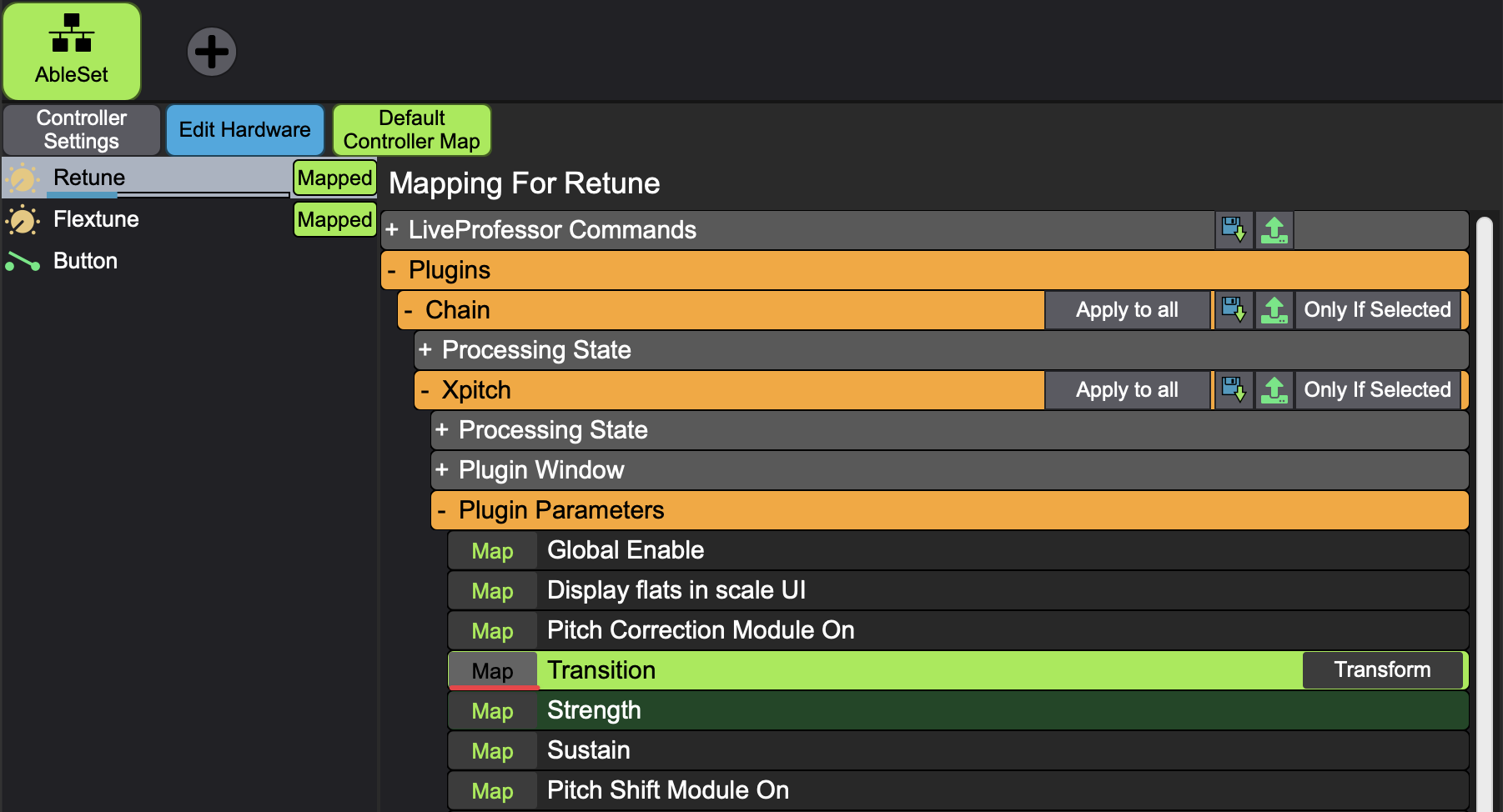
Next, click the green “Map Controls” button and select the knob or button you’d like to map in the sidebar on the left. Then, click the “Map” button next to the parameter you’d like to map it to:

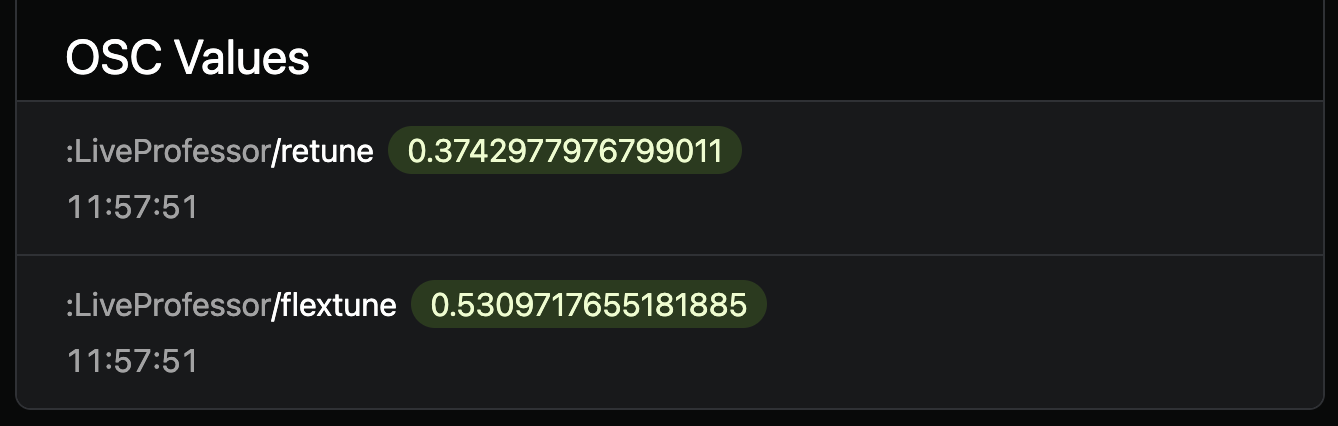
I’ve done this with “/retune” and “/flextune” in my example, and the values are now available in AbleSet:

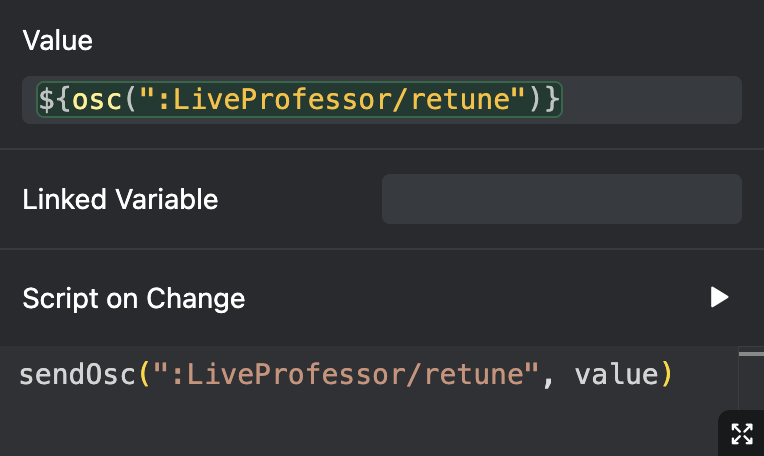
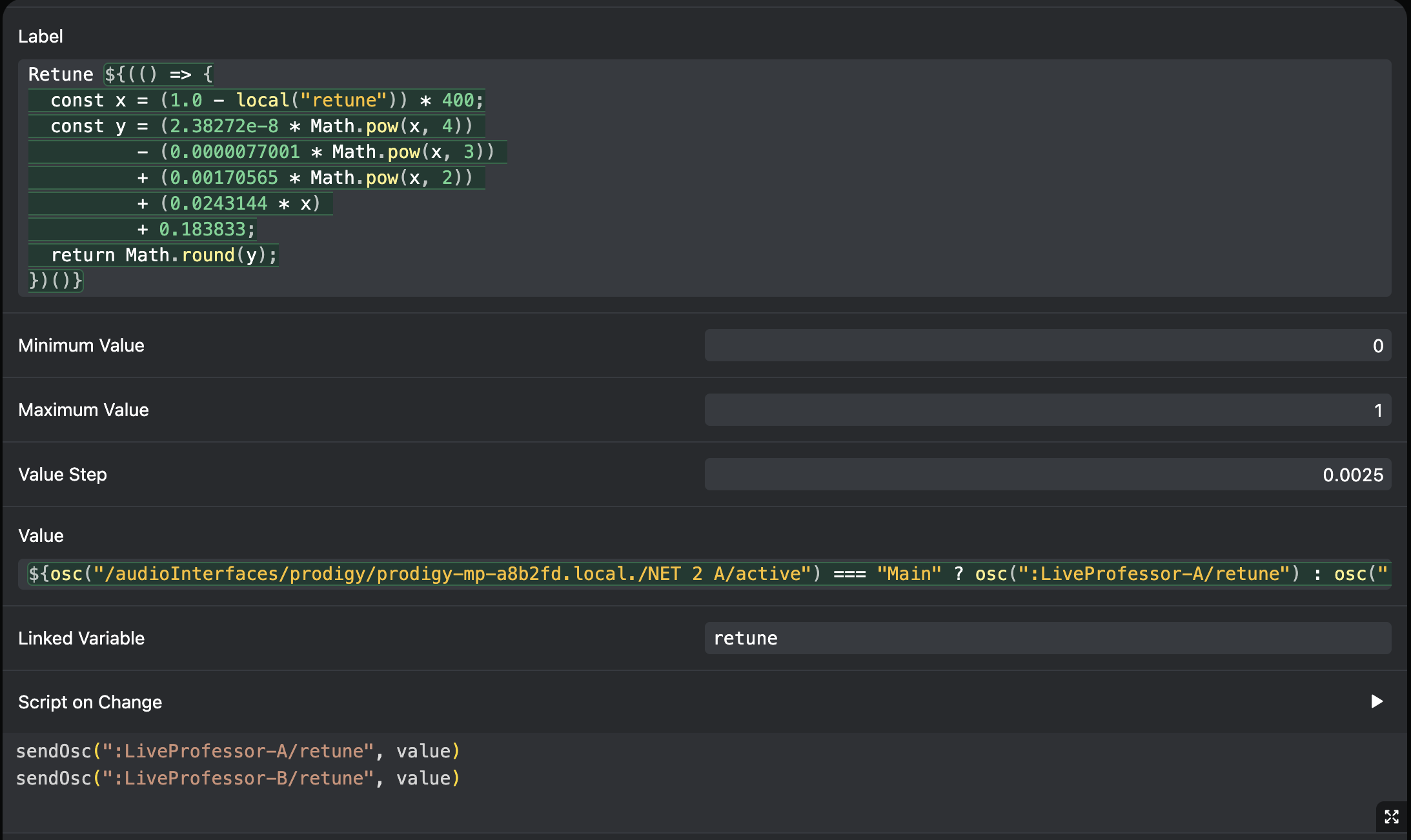
To map them to a fader, use the following element settings:

I hope this helps! Let me know if you have any further questions :slight_smile: