Hey Charles!
Good question! This is a pretty common workflow once you start scaling to multiple devices.
In AbleSet 2, there isn’t a single “global preset” you can push automatically, but you can achieve consistent UI behavior in a couple of practical ways:
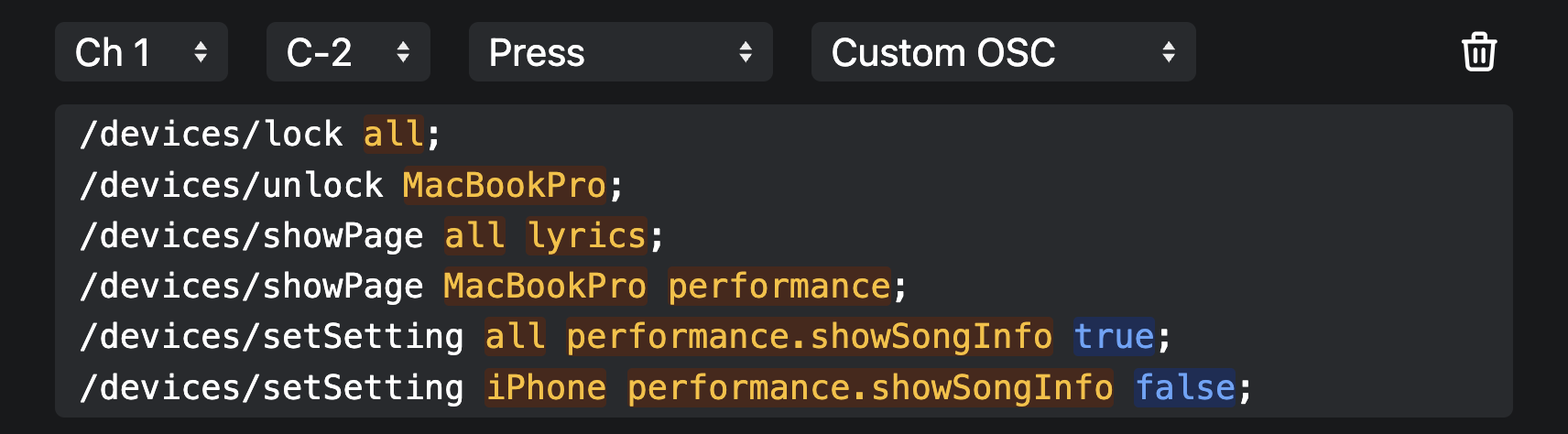
• You can create a MIDI mapping that triggers a chain of OSC commands to set things exactly how you want (views, locks, device-specific options, etc.).
• You can also use an OSC track at the start of your project (or at the start of each song) to act as a configuration / bootstrap step.
Using device control commands, you can target every connected browser or iPad at once, for example:
• Force all devices to open the same page (Performance / Setlist / Lyrics)
• Apply specific device settings
• Lock devices after configuration
You’ll find the relevant settings commands documented here.
This way, even if you’re deploying multiple iPads on stage, you can re-apply your preferred UI state automatically instead of configuring each device manually every time.
Starting with AbleSet 3 Beta 12, things get even cleaner thanks to project-specific files.
AbleSet now stores its settings and data inside an AbleSet folder within your Ableton project, which means:
• Global settings
• MIDI mappings
• Canvases
• Custom styles
…all travel with the project. You can copy the project to another computer, load it, and get the exact same configuration right away.
This already solves the “same settings across multiple computers” part very nicely. For mobile / remote devices, you can still combine this with device-level OSC commands if you want to enforce a specific UI state on load.
Hope that helps clarify the current options — happy to go deeper if needed!