Hey Daniel,
If you want Ableton’s internal metronome to be controlled by the same CLICK group in AbleSet, you need to make sure the audio routing matches that group.
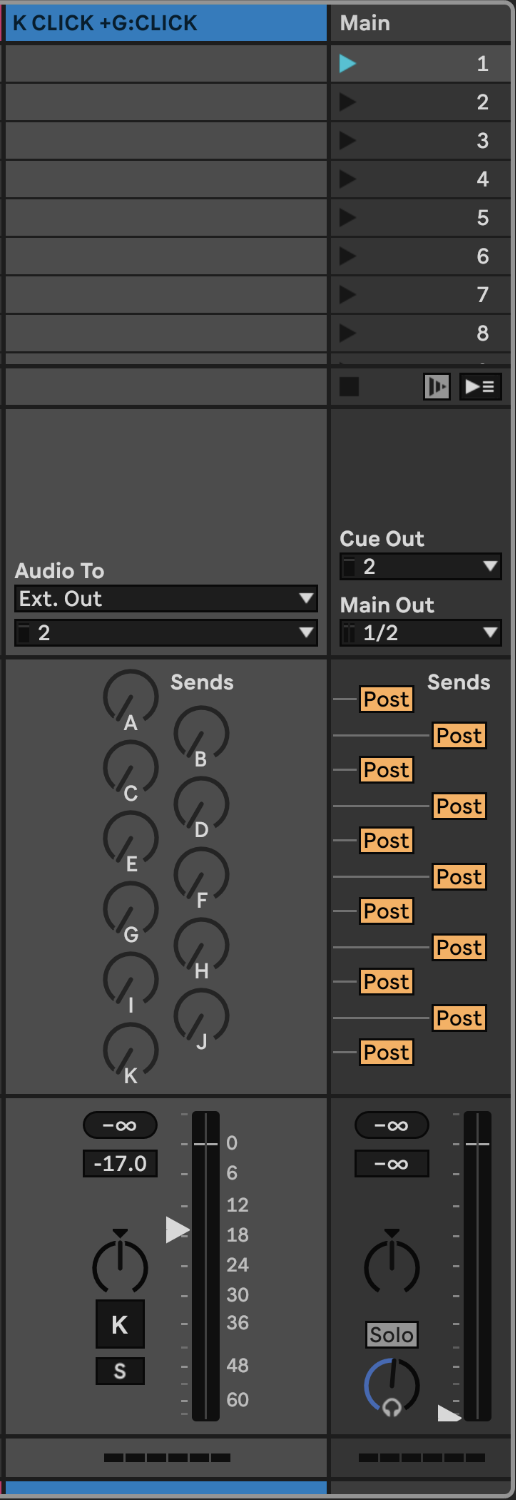
First you need to create a Click Group in Live. It can be either a normal Audio track, or a Return track. It should be flagged like this to properly show up on AbleSet’s mixer:
+G:CLICK
(Note that “CLICK” must be uppercase.)
Now you need to make sure that the Cue Out is assigned to the same physical outputs that your +G:CLICK track/group is routed to.
If those outputs match, the internal Live click will come through the same path that AbleSet is controlling.
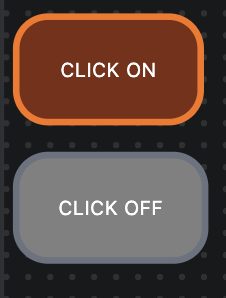
I’ve set up a Canvas with a dynamic click toggle and a slider that you can try once you set up your routing:
Click Toggle & Slider.json (1.3 KB)
I’ll also share the setup in case anyone finds it useful, so once routing is aligned, you can control the group via:
/mixer/click/volume
/mixer/click/muted
For the slider you’re looking for in Canvas, there’s already a dedicated element for this:
- Open your Canvas editor
- Press CMD+K (or click the + button)
- Add “Click Track Volume Slider”
If you also want a button that toggles the click on and off, you could set it up like this:
Add a button element.
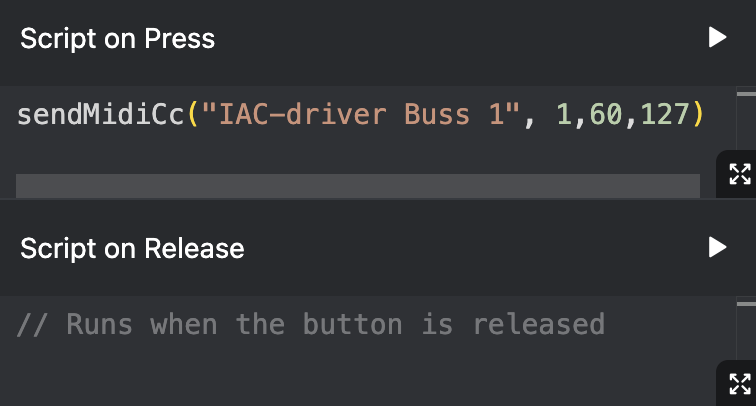
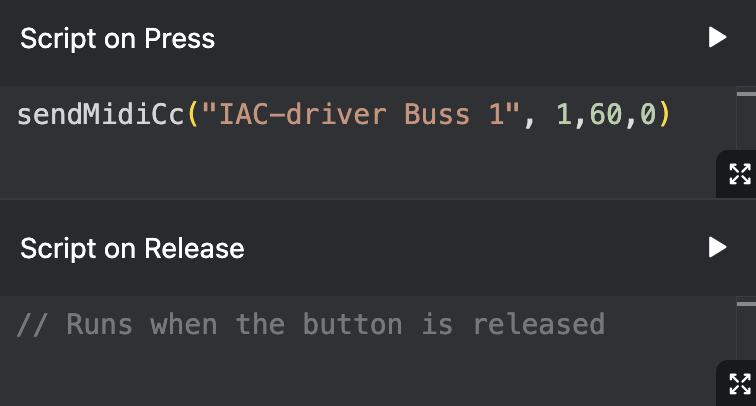
Canvas → Button (Type: Script, then Script On Press)
sendOsc("/mixer/click/mute", "toggle");
Background Color set to Dynamic:
${osc("/mixer/click/muted") ? "red-900" : "green-600"}
Button Label field:
${osc("/mixer/click/muted") ? "CLICK OFF" : "CLICK ON"}
This gives you the toggle you’re looking for for the click track group.
And that slider controls the AbleSet click track group volume, i.e. the /mixer/click/volume value. As it’s coming out of the same outputs, that will affect the internal Live click as well.
Hope that clears it up!