FADE OUT/IN Selected group tracks

Hey folks, there a certain times in live settings where I am following a leader and I need the ability to fade out or in depending on where they are going in a set.

I’ve never loved the PLAYBACK the app itself, but the feature to fade in or out is a great thing in the above setting.

So for example, say I have 4 main track groups, GTRS, KEYS, TRAX, & BGVS.

I’d love to have a way to bring those faders out OR IN on a 7-10 second fade, where I’m left with CLICK, and PAD… being affected by neither.

Is this doable? I think there’s away to potentially do it in Ableton, but if there’s prompt or setting we can explore outside I think that would be awesome.

If anyone has any tips for accomplishing this I’d love to hear them. Thanks.

-

Caleb

Hey Caleb,

A good way to handle this would be to put GTRS, KEYS, TRAX, and BGVS into AbleSet mixer groups (flagged with +G:GTRS, and so on), and then trigger a Custom OSC MIDI mapping that sends /mixer/[group]/fadeTo.

That way you can fade only those groups, while leaving CLICK and PAD untouched simply by not including them in the command.

For example, you could map a button to this:

/mixer/gtrs/fadeTo 0 0.5;
/mixer/keys/fadeTo 0 0.5;
/mixer/trax/fadeTo 0 0.5;
/mixer/bgvs/fadeTo 0 0.5

That would fade those four groups out.

Then to bring them back to their previous level, you could use:

/mixer/gtrs/fadeTo previous 0.5;
/mixer/keys/fadeTo previous 0.5;
/mixer/trax/fadeTo previous 0.5;
/mixer/bgvs/fadeTo previous 0.5

Remember that these go all lowercase in OSC commands, while when you set up the track groups in your Ableton session (as in +G:GROUP_NAME), they must be uppercase to correctly show up in the AbleSet mixer.

A helpful detail here is that the speed parameter is a multiplier where:

1 = about 5 seconds
• lower values = slower fades
• higher values = faster fades

So for the fade times you mentioned:

• about 10 seconds0.5
• about 7.5 seconds0.67
• about 7 seconds0.7

You can set this up in Settings → Edit MIDI Mapping, map your footswitch or button, and choose Custom OSC as the action. You could also map this to a Canvas button if you prefer.

AbleSet supports multiple OSC commands in one mapping separated by semicolons, so chaining all four groups like this works well.

And the mixer OSC side supports fading groups and restoring them with previous, so this is exactly the kind of workflow it’s meant for.

Would that work for your use case?

It worked super well for me! Thank you so much!

Is there a way to map Low-Pass filters such as Auto Filter to do the same as the VOLUME FADE IN/ OUT as requested above? Fading in and ut tracks with a filter sounds more musical in my setting, and if there was possible to map these, that would be really awesome. Is there any way to map this in an easy way - or maybe a feature request?

Bumping this post, I am trying to figure out the same thing. Using 4 return tracks for outputs and on each of those tracks I have placed and instrument rack this is a filter and reverb and programmed a slider on my control that controls all of 4 tracks together, but I would love have the visual feedback in the canvas. I know its possible but I haven’t cracked it yet. Looking for some help!

1 Like

Anyone got any thoughts?? :upside_down_face:

Hey @danielkoppang and @calebstephen,

Please excuse my late reply!

I wanted to take the time to properly explain this because it’s not something that can be covered in a few lines. So this is going to be quite a long read, but bear with me!
If you follow these steps, you’ll be able to get this working.
It’s totally doable using AbleSet’s Canvas combined with AbletonOSC, a free third-party Control Surface Script that exposes almost every parameter in your Live session via OSC.

Let me walk you through the full setup, and then I’ll cover each of your specific use cases.

Setting Up AbletonOSC

AbletonOSC is a Remote Script that lets you read and control any device parameter in your Live session from AbleSet.

1. Install the script:

  • Download and unzip from AbletonOSC’s GitHub page
  • Rename the folder to AbletonOSC
  • Copy it to your Remote Scripts folder:
    • macOS: /Users/[username]/Music/Ableton/User Library/Remote Scripts
    • Windows: \Users\[username]\Documents\Ableton\User Library\Remote Scripts
  • Restart Live
  • Go to Preferences → Link / Tempo / MIDI and select “AbletonOSC” from the Control Surface dropdown
  • You should see: “AbletonOSC: Listening for OSC on port 11000”

2. Create the OSC Connection in AbleSet:

  • Go to Settings → MIDI Mapping, OSC & Scripting → OSC Settings
  • Click Add New Connection
  • Set:
    • Name: AbletonOSC (no spaces)
    • Send Address: 127.0.0.1:11000
    • Listen Port: 11001

3. Find your device and parameter index:

AbletonOSC uses 0-based indexing, so your track numbers start at 0 (track 1 in Live = index 0, track 2 = index 1, and so on).

To confirm you’re targeting the right device, go to the OSC Command Tester at the bottom of the OSC Settings page and send:

:AbletonOSC/live/device/get/name TRACK_INDEX 0

Replace TRACK_INDEX with your track number minus 1. The 0 is the device index (first device on that track). If your filter isn’t the first device, try 1, 2, etc.

Once you’ve confirmed the device, get the list of all its parameter names:

:AbletonOSC/live/device/get/parameters/name TRACK_INDEX DEVICE_INDEX

This returns all parameter names in order. You can see the response in the OSC values list at the bottom of your AbletonOSC connection settings. Count from 0 to find the index of “Frequency” (for example, for Ableton’s Auto Filter, it’s index 1).

You can verify it works by sending:

:AbletonOSC/live/device/set/parameter/value TRACK_INDEX DEVICE_INDEX PARAM_INDEX 0.5

Remember, track index is the track number you see in Ableton Live, minus 1.

If the Frequency knob, or your targeted parameter moves in Live, then you’re all set.


Controlling a Filter from Canvas — with Volume Fades (@danielkoppang)

Since you’re looking to replicate the fadeTo behavior but with a filter sweep happening alongside the volume fade, here’s how to do it with a Canvas button.

The idea is: press the button once, and it simultaneously sweeps the filter down and fades out your mixer groups. Press it again, and it sweeps the filter back up and restores the volumes.

1. Enable real-time updates:

In your AbletonOSC connection settings, add this to the OSC on Create field under Event Commands (no :AbletonOSC prefix needed here):

/live/device/start_listen/parameter/value TRACK_INDEX DEVICE_INDEX PARAM_INDEX

This tells AbletonOSC to send updates to AbleSet whenever the Frequency value changes — including when it’s moved from Live’s UI or by automation.

2. Create a Button in Canvas:

Open your Canvas, press ⌘K (or the + button), and add a Button element. Set the Button Type to Script, and configure it like this:

Label (Dynamic):

${shared("filterClosed") ? "Fade In" : "Fade Out"}

Background Color (Dynamic):

${shared("filterClosed") ? "indigo-400" : "indigo-900"}

Script on Press:

const track = TRACK_INDEX;
const device = DEVICE_INDEX;
const param = PARAM_INDEX;
const fadeDuration = 8000; // ms — total duration of the filter sweep
const steps = 300;
const stepTime = fadeDuration / steps;
const volFadeTime = 8; // seconds — duration of the volume fade (same as filter)

const isClosed = shared("filterClosed", false);

if (isClosed) {
  // Fade in: restore volumes + sweep filter up
  sendOsc("/mixer/gtrs/fadeTo", "previous", volFadeTime);
  sendOsc("/mixer/keys/fadeTo", "previous", volFadeTime);
  sendOsc("/mixer/trax/fadeTo", "previous", volFadeTime);
  sendOsc("/mixer/bgvs/fadeTo", "previous", volFadeTime);

  const prev = shared("filterPrev", 1.0);
  for (let i = 1; i <= steps; i++) {
    const v = (i / steps) * prev;
    sendOsc(":AbletonOSC/live/device/set/parameter/value", int(track), int(device), int(param), v);
    await sleep(stepTime);
  }
  setShared("filterClosed", false);
} else {
  // Fade out: kill volumes + sweep filter down
  const current = osc(":AbletonOSC/live/device/TRACK_INDEX/DEVICE_INDEX/get/parameter/value", 1) ?? 1.0;
  setShared("filterPrev", current);

  sendOsc("/mixer/gtrs/fadeTo", 0, volFadeTime);
  sendOsc("/mixer/keys/fadeTo", 0, volFadeTime);
  sendOsc("/mixer/trax/fadeTo", 0, volFadeTime);
  sendOsc("/mixer/bgvs/fadeTo", 0, volFadeTime);

  for (let i = 1; i <= steps; i++) {
    const v = current * (1 - i / steps);
    sendOsc(":AbletonOSC/live/device/set/parameter/value", int(track), int(device), int(param), v);
    await sleep(stepTime);
  }
  setShared("filterClosed", true);
}

Here’s what this does:

  • First press (Fade Out): Saves the current filter frequency, then simultaneously starts fading your mixer groups to 0 and sweeping the filter down — both over 8 seconds. The volume fades use AbleSet’s native fadeTo (which is smooth by nature), while the filter sweep runs in 300 steps.
  • Second press (Fade In): Restores your mixer groups to their previous volume and sweeps the filter back up to where it was — again, both over 8 seconds.
  • The label and background color update dynamically so you always know the current state.

Here’s the actual button:
Fades & Freq Sweep.json (1.8 KB)

Just adapt the code to match your actual track/device indices and replace the mixer group names (gtrs, keys, trax, bgvs) with whatever groups you’re using in your session.

You can also adjust fadeDuration and steps to taste. Longer duration with more steps = slower, smoother sweep. For example, fadeDuration = 10000 with steps = 400 would give you a 10-second sweep. Play around with it until it feels musical for your setting.

You can apply the same approach to Resonance, Drive, Dry/Wet or any other parameter — just use its parameter index instead.


Controlling Filters on 4 Return Tracks with One Slider (@calebstephen)

Since you have 4 return tracks with Instrument Racks containing filters, the approach is similar but the Script on Change sends to all 4 tracks at once.

EDIT:
Important note on return track indexing: After testing this extensively, I found that AbletonOSC’s Device API unfortunately does not support return tracks. Return tracks are not included in the regular /live/track/ index range, and there is no dedicated namespace for accessing devices on them. The only return track commands that exist in AbletonOSC are create_return_track and delete_return_track — but no device control.

Workaround: Instead of placing your filters on return tracks, you can create 4 regular audio tracks dedicated to filtering, route your audio through them instead of the returns, and place your Instrument Racks there. Since they’d be regular tracks, AbletonOSC can fully access their devices and you’d be able to control them from a Canvas slider.

Once you have your filters on regular tracks, the setup is exactly the same as above. Find each track’s index, then:

1. Enable real-time updates:

In your AbletonOSC connection’s OSC on Create field, add a start_listen for at least one of the 4 tracks (to drive the visual feedback):

/live/device/start_listen/parameter/value TRACK_A_INDEX DEVICE_INDEX PARAM_INDEX

2. Create the Slider:

Open your Canvas, press ⌘K (or the + button), and add a Slider element. Configure it:

  • Minimum Value: 0
  • Maximum Value: 1
  • Value Step: 0.01
  • Value:
  ${osc(":AbletonOSC/live/device/TRACK_A_INDEX/DEVICE_INDEX/get/parameter/value", 1) ?? 0.5}
  • Script on Change:

js

  // Replace these with your actual track indices
  const tracks = [TRACK_A, TRACK_B, TRACK_C, TRACK_D];
  const device = DEVICE_INDEX;
  const param = PARAM_INDEX;

  for (const t of tracks) {
    sendOsc(":AbletonOSC/live/device/set/parameter/value", int(t), int(device), int(param), value);
  }

This gives you a single slider that controls all 4 filters simultaneously with visual feedback in Canvas.

I’d also suggest opening a feature request on the AbletonOSC GitHub repo asking for device access on return tracks — it would be a great addition for the community.

Hope this helps!

1 Like

The AbleSet team’s thoroughness will never be beaten. Thank you!!!

Insane detailed response that I hope (but also know) will help me and others out there. :saluting_face:

First off, this worked beautifully as I was able to target the locate, target, and control the filters on the independent tracks and control them with the slider on the canvas.

My issue is that I am having no luck targeting the Return Tracks. I have a template I use to build sets in for my church, it has 21 tracks & then 5 Return Tracks in it from the start, so using the OSC tester I tried to get the index but once I tried 20, 21, 22, etc. My log would give me an error that would say that my index was out of range

I’m going to read through the osc readme and see if I can come up with the answer on my own but also tell me if I’m being dumb and making an error bc I’m a newb haha

Thanks!

For testing, I ended up creating 4 tracks that I placed at the very top of the set

Hey @calebstephen,

I originally assumed that return track indexing in AbletonOSC would just continue after the regular tracks, but after investigating this thoroughly, that’s not the case.

Here’s what I found:

  • Regular tracks are fully accessible via the Device API, but return tracks are not included in that index range — going beyond the last regular track gives an “index out of range” error.
  • There’s no dedicated namespace for return track devices either.
  • The only return track commands in AbletonOSC are create_return_track and delete_return_track — no device control at all.

So this seems to be a limitation of AbletonOSC itself.

Workaround: Instead of placing your filters on return tracks, create 4 regular audio tracks dedicated to filtering and route your audio through them. Since they’d be regular tracks, AbletonOSC can fully access their devices and you’d be able to control them from the Canvas slider exactly as described.

I’ve also edited my original reply above with the corrected info, so you can reference it going forward.

Let me know if you need help setting up the workaround!

Got it! Thank you for confirming that for me. I’ll keep experimenting and see what solutions I can come up with!! I’ll share if I have a breakthrough!

1 Like

First workaround. Could be over complicated but it worked at least!

I created 4 MIDI tracks labeled to match our template:

  • PERCS Filter CONTROL
  • BASS Filter CONTROL
  • TRACK Filter CONTROL
  • VOX Filter CONTROL

I then dropped the LFO M4L device on each track, zero’d out all parameters and then mapped the Offset knob [PARAMETER 5 on the LFO btw], to control the related macro knob of the instrument racks placed on the return tracks.

Then I had to readjust the script to make sure the canvas slider was going after the Offset on these new FILTER CONTROL tracks but it worked great!! We’re pretty entrenched in our song formatting so we have 50-60 projects all with the same output routing I didn’t want to have to mess with rerouting! So we’ll see how it gets through rehearsal tomorrow I guess!!

UPDATE:

I just discovered the “MultiMap” max for live device and this works perfect instead of the LFO. Its way more simple to map since I can I have just one control track and that one plugin can control the filters on each return track. The “input” parameter is 9 btw.

1 Like

This is fantastic!

I’m not great with scripting and was trying to figure this out myself, but I thought asking for help would be better in the end :sweat_smile:

I’d like to do what you’ve described here with the button for fading out, but for only fading the filter, not the volume as well. I didn’t know what to delete from the existing script you had sent, if I could get some help with that please? :blush:

Hey @Adam_Molinaro,

Just remove these lines from the script:

•	`const volFadeTime = 8;`
•	The 4 `sendOsc("/mixer/.../fadeTo", "previous", volFadeTime);` lines in the fade in block
•	The 4 `sendOsc("/mixer/.../fadeTo", 0, volFadeTime);` lines in the fade out block

Everything else stays exactly the same — the filter sweep logic, the dynamic label, and the dynamic background color all work independently.

Let me know if that works on your end!

Yep this kind of works… I’m using the LFO ableton plugin, and it’s definitely affecting the right parameter…. but besides that it’s not really doing what I was expecting :sweat_smile:
The issue is that it snaps the LFO to -99% and then fades down to -100%… I’m not sure how else to explain it. I’ve attached a screen recording.

Hey @Adam_Molinaro,

Thanks for the video!
Could you clarify what you’re trying to achieve here? Are you looking to:

A) Sweep the “Filter Control” macro on the Instrument Rack itself (so the filter opens/closes smoothly regardless of the LFO), or
B) Control the LFO Offset/Depth to gradually bring the LFO effect in and out?

If it’s option A, you’d want to target the Instrument Rack’s macro parameter instead of the LFO. To find the right parameter, run this in the OSC Command Tester, but point it at the Instrument Rack device index instead of the LFO:

:AbletonOSC/live/device/get/parameters/name TRACK_INDEX 0

The “Filter Control” macro should show up in that list (usually macros are the first parameters on a rack). Once you have its index, update the script with that instead.

Okay so I’ve changed my approach, this will hopefully be easier to diagnose and get working.
I’ve created seperate audio tracks that my stems are routed to, instead of return tracks cause I saw you can’t access those through AbletonOSC.

What I have on those “return tracks”, is an effect rack with 2 autofilter’s and a macro controlling the both of them at the same time. All I’m needing to do is have a fade on that macro so that it does both filters at the same time, over however many seconds.
And then I need this to work on 11 different “return tracks”, with the ability to add more down the track if I need.

I know the track index for the 1st “return track” is 66, device index is 0 and the parameter index is 1.
Just can’t seem to get it to do the fading or parameter adjustment properly with the script you sent above, plus taking out the volume stuff.

EDIT

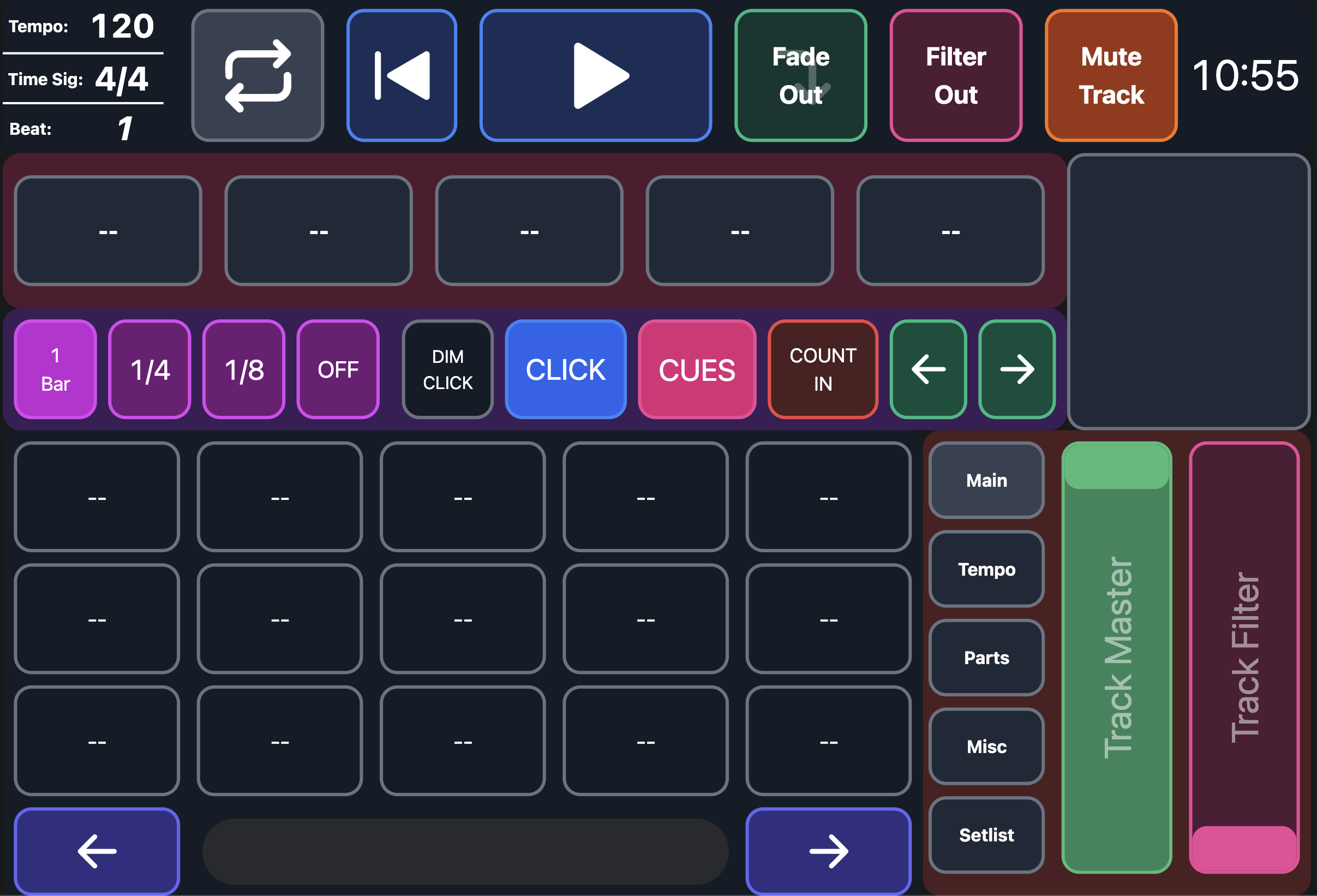
It might help if I show the canvas.

What I really want to be able to do…..

Buttons up top right,

Emerald Button - Fade in/out the volume of my “track” group
Pink Button - Filter in/out my “track” group (11 different return tracks)
Orange Button - Hard mute/unmute of the “track” group

Faders bottom right,

Emerald Fader - Equivalent of Emerald volume fade button, but hands on control on the fader, with value updates
Pink Fader - Same as above, but for the filter.

Hope that helps clarify, I’ve dived in but having a hard time getting all this working together properly :sweat_smile:

@leolabs @agustinvolpe

Would I be able to get some help with this when possible please?

Let me know if I need to give any more info :smiling_face::folded_hands:t2:

I’ve managed to get most of what I’ve asked about working, through trial and error with the coding supplied above haha

The only thing I haven’t got working is the filter slider to follow the filter value when using the auto-filter button button that fades it over x amount of seconds. I can adjust the filter with the slider, but it just doesn’t seem to be getting the info from Ableton about the value changes when something else changes it.

Thanks for your help in advance :smiley: