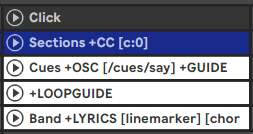
I am working on fine-tuning my setlist setup using the Auto-Speak Section Titles feature, and I’d like to ask about two potential customizations to improve cue timing and control:
Extending Lead Time / Count-In Beyond 2 Bars ([c:X]):
Is there a way to set the cue trigger to start 3 or more bars before a section? Is 2 bars the hard limit for Auto-Speak, or is there an attribute to extend lead time further?
I know we can customize the count-in per section using attributes like [c:0], [c:1], or [c:2] on locators or section clips. However, on songs with longer vocal pickup lines or early musical entries, 2 bars is sometimes not enough time for the full phrase to finish speaking before the section starts.
I tried using [c:3], but AbleSet doesn’t seem to recognize it.
Attribute to Disable Auto-Speak on Specific Section Clips:
Is there am attribute (e.g., [no-speak] or [silent]) to selectively disable Auto-Speak Section Titles for an individual MIDI clip on the “Sections +OSC” track?
If I could disable auto-speak on specific clips, I could keep the “Sections +OSC” track purely for displaying visually clean section names and descriptions on the Setlist UI, while using the “Cues +OSC [/cues/say]” track to announce custom cues exactly where and when I want them.
Thanks for your help and for building such a great tool!
The count-in currently tops out at two bars, so [c:3] isn’t a valid value at the moment. The attribute accepts [c:0], [c:1], and [c:2]. I’ll pass along the suggestion to allow longer count-ins.
In the meantime, for sections with a long pickup, add [c:0] to disable the automatic count-in and place a clip on your Cues +OSC [/cues/say] track wherever you need it, e.g. three or four bars before the section starts. That gives you full control over both the timing and the wording.
Disabling the announcement for specific section clips
[c:0] is the attribute for this. Add it to a section clip (or section locator) and AbleSet won’t count that section in:
Chorus {Big build} [c:0]
That way the Sections track only takes care of what’s shown in the setlist, and your Cues track takes care of what’s spoken.
If you add [c:0] to the song locator instead, it applies to all sections of that song, and you can still override it per section with [c:1] or [c:2]. And if you’d rather handle all announcements from your Cues track, you can turn off “Count-In Sections During Playback” in Settings → Cues altogether.
One thing I’m curious about: you mentioned your track is called Sections +OSC. The Sections track doesn’t need the +OSC flag, a MIDI track named Sections (or any other name that includes +SECTIONS) is enough. Is there a specific reason you added it?
Thank you so much for the detailed explanation! That was extremely helpful and fully resolved my customization needs. Combining [c:0] on section clips with /cues/say on the OSC track gives me the exact timing and control I was looking for.
Regarding your question about the track name Sections +OSC:
I’ve developed the habit of adding the +OSC flag to my Sections track so that AbleSet automatically adopts and displays the color palette of the MIDI clips in the Setlist UI!
Thanks again for the incredible support and insights!
Glad to hear that combination gives you the timing and control you were looking for!
One quick note on the track name: the +OSC flag isn’t related to clip colors. It marks a track as an OSC Track, which means AbleSet treats the name of each clip on it as an OSC command and sends it when the playhead reaches that clip.
The flag made for clip colors is +CLIPCOLORS, or +CC for short. Add it to the name of your Sections track and AbleSet will use the color of each clip for its section:
Sections +CC
So I’d recommend dropping +OSC from that track and keeping your OSC commands on the dedicated Cues +OSC [/cues/say] track.
Ah, sorry about that! I got my flags mixed up for a moment.
You’re totally right. I actually use the +CC flag on my Sections track (Sections +CC), as shown in my screenshot, specifically to sync the clip colors with the Setlist UI.
My OSC commands remain strictly on the dedicated Cues +OSC [/cues/say] track.
Thanks for pointing that out and keeping everything crystal clear!
One more thing I noticed in your screenshot: [c:0] is on the name of the Sections track (Sections +CC [c:0]). That attribute is meant to go in one of these two places:
The section itself, meaning the name of the section clip (or section locator). That disables the announcement for that one section:
Chorus [c:0]
The song locator, which applies it to all sections of that song. You can still override it for individual sections with [c:1] or [c:2]:
My Song [c:0]
And if you want it off for the whole set, turning off “Count-In Sections During Playback” in Settings → Cues is the simplest option.
I actually placed the [c:0] attribute directly on the track name itself like this: Sections +CC [c:0], and AbleSet is successfully disabling the automatic spoken section cues across the board for that track!
It’s been working smoothly as a quick way to mute auto-speak for all sections without having to toggle the global setting or add the tag to every single song locator.