It’s been a while since the last beta. I’ve been busy working on a bunch of new features and improvements and I’m excited to hear what you think about them!
Project-Specific Files
AbleSet now stores all settings and data in an “AbleSet” folder in the directory of your Ableton project. This means you can copy your project to another computer, load it, and have the exact same settings, MIDI mappings, canvases, and custom styles.
Canvas
The canvas got a big update in this beta, with new components and a JavaScript scripting API that allows you to create more dynamic canvases. Scripts can be edited in an interactive editor with autocompletion.
Moved canvas and element settings into a sidebar
Added local() and setLocal() functions to work with variables in canvases (docs)
These variables can be used in scripts, labels, buttons, and other elements that support it
Added a configurable slider component
Sliders have a maximum, a minimum, and a step value
Slider values can be stored in a local variable and used in scripts
Added an input field component
Input values can be stored in a local variable and used in scripts
Added an option for buttons to behave as links or script triggers
Buttons can link either to other canvases (e.g. “/canvas/name”), other pages (e.g. “/lyrics/leo”) or external pages (e.g. “https://ableset.app”)
Buttons can now trigger custom scripts
You can now set the background color of canvases dynamically based on any variable
Added the ability to select multiple elements using ⌘ or ⇧
Added an overlay that previews the result of template fields, or displays the error if there is one
Improved the performance when resizing elements in the editor
Improved the performance when using many templated values in a canvas
Fixed a flash of incorrect icon sizes on buttons when opening a canvas
Fixed elements only being movable after clicking them twice
Fixed an issue where the screen would scroll on iOS/iPadOS
OSC
Added new /midi/send functions to send MIDI to any output on your computer (docs)
These are also available as functions in the scripting API, e.g. sendMidiNote() (docs)
Setlist
Added a button at the end of the setlist editor to toggle “STOP” for all songs
Fixed small gaps between songs when “Always Stop on Song End” is enabled
Fixed setlist import file picker not allowing RTF files used for BandHelper setlists
AbleNet
Disabled AbleNet’s Automatic Drift Correction by default
Having this enabled without properly warping clips can lead to unwanted drifts between MIDI and audio tracks
Added the ability to print setlists from the floating window using ⌘+P or Ctrl+P
Lyrics
Improved the performance of jumping to specific lyrics lines
General
Overriding the duration of a section now influences the duration of the song
Improved the performance of parsing many project files
Removed the “Connected to Ableton” notification when starting AbleSet
Fixed “Change Hostname” settings option not working on macOS Ventura and newer
Just as I thought I’d locked in a Canvas setup
I have SO many questions now… so I apologise for the bombardment in advance
For now here’s a couple…
#1 - I’ve decided to try setting up buttons that grab section names and go to each of those sections using their indexes, instead of using the setlist within Canvas.
Is there a way that I could set the buttons to take the respective section colours in a muted shade while not currently playing and then a brighter shade when that section is currently playing? I’ve got it working with whatever colour I specify, but haven’t been able to figure out a way to grab the section colours with different shades.
#2 - I’ve been looking at all the Scripting API stuff and thought I’d have a try - honestly I’ve got no idea what I’m doing though haha
What I’m attempting to do is create “pages” for my song section buttons without actually creating a new canvas page. The way I thought I could make that happen is by taking the section index number from a button, using it as a value or variable (I don’t know which term it is) and then making an arrow button that adds 15 (the amount of buttons I have setup) to that value. So it would be changing the actual values within the buttons instead of changing to a whole new canvas page… is this crazy or am I actually on to something here and just need help with how to actually write that out in script?
Thanks so much for your help in advance Leo, Ableset is seriously changing the game!
Thank you for your hard work! We finally have the ability to output MIDI messages via Canvas to control certain functions! I already tried triggering Ableton Live’s Drum Racks through Canvas yesterday — it’s amazing! I’ll continue exploring its possibilities.
Next, I’d like to give some feedback on a few issues I encountered in Beta 12. I’ve recorded my screen to help you better understand them:
1. When the setlist exceeds the currently visible songs, it doesn’t auto-scroll (even with “Auto-Scroll to the current Song or Section” turned on). I didn’t encounter this issue in Beta 11.
2. In Beta 12, when adding elements in Canvas, you have to manually type the entire OSC Command, instead of just typing a few related letters to find the corresponding OSC Commands and then simply clicking with the left mouse button to auto-fill, as in previous versions. This issue also didn’t occur for me in Beta 11.
3. For the Canvas setlist element, as shown in the video, there’s a scrollbar on the right (this issue also existed in Beta 11, but my Computer B doesn’t have the scrollbar while Computer A does).
Additionally, I have a suggestion — I hope the Mixer function can also be integrated into Canvas.
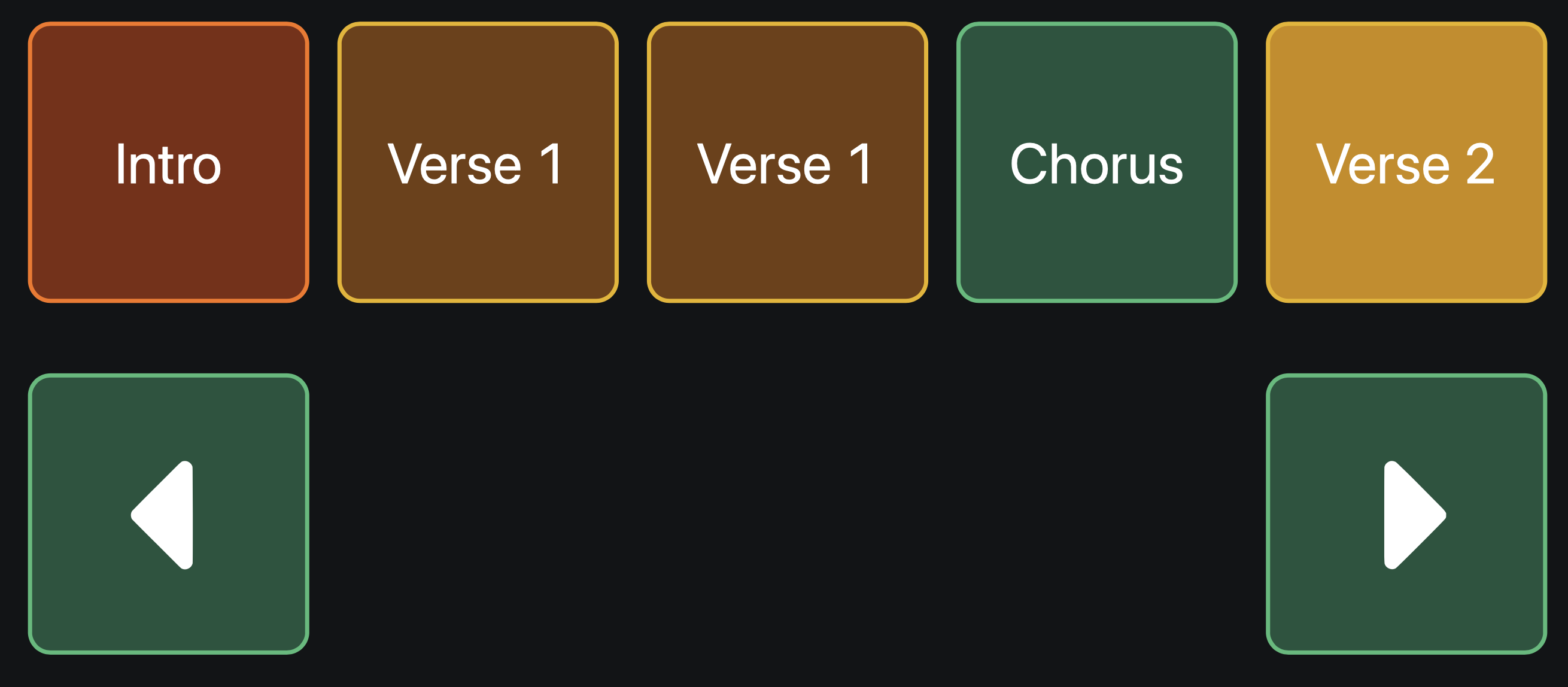
Both points are definitely possible! Here’s a canvas that displays 5 sections of the current song, with buttons to switch between them on a per-page basis:
You can add this canvas to your project by copying it to the AbleSet/Canvases folder in your Ableton project folder. You can then copy and paste the elements from this template to your canvas.
Let me know if this works as a basis for what you’re trying to do. I’m looking forward to your feedback!
Hey @GOODSHOW, thank you for reporting these issues!
I’ve managed to reproduce and fix the scrolling issue and will release a new beta soon.
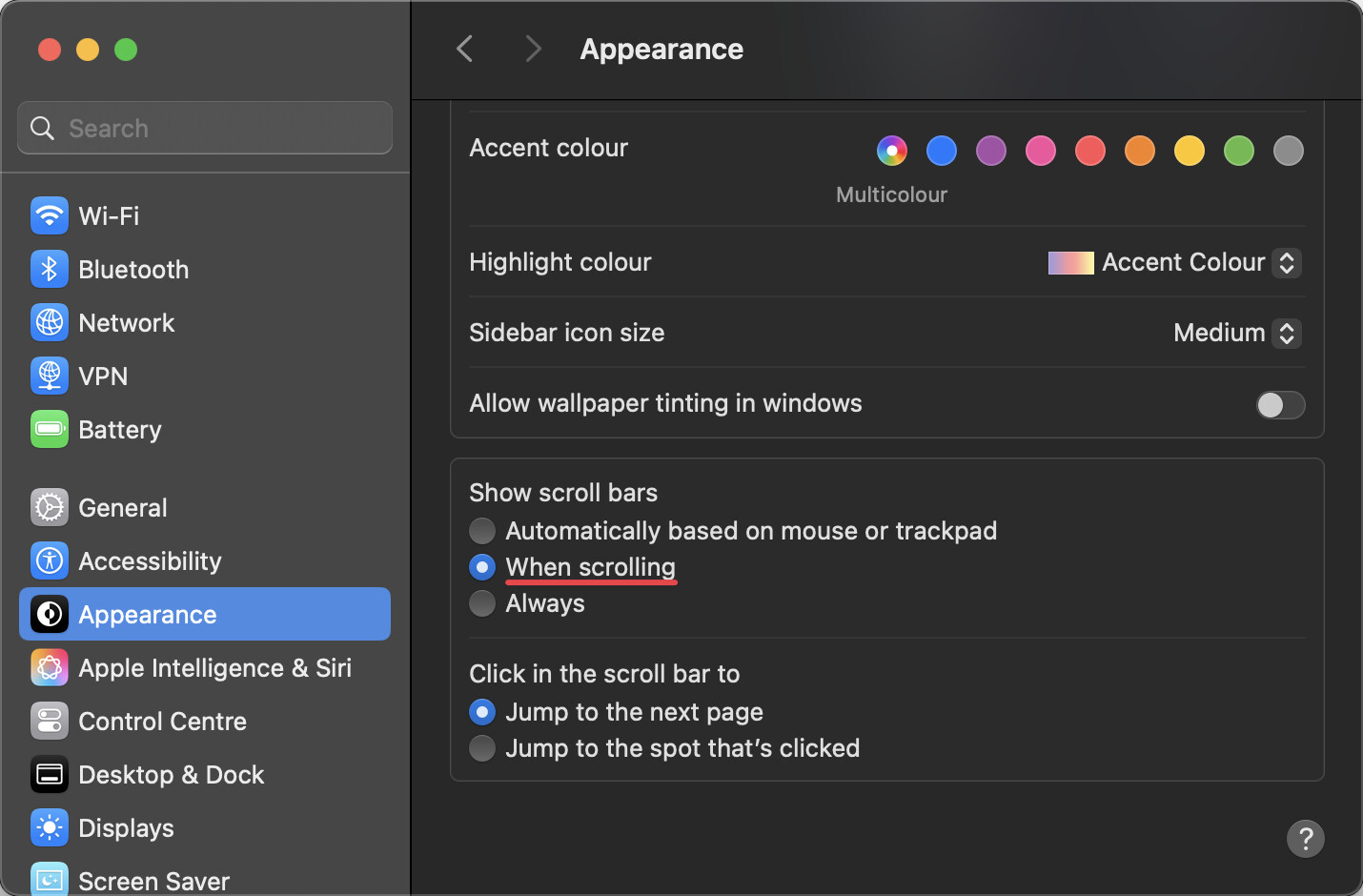
Regarding the scrollbar on one of your computers, this is an OS-specific setting. You can fix it by opening your Mac’s appearance settings and setting “Show scroll bars” to “While scrolling”:
I was also able to reproduce the OSC autocomplete issue on my end, but I haven’t found a fix for it yet, unfortunately. I’ll keep working on it and will try to release a fix with the next beta. In the meantime, you can scroll through suggested addresses using the up and down arrows on your keyboard and select a suggestion using Enter.
Yes, that works fantastically, thank you Leo!
I’ve also edited it to do the same thing but with Song Names as well - from looking at what you’ve used it’s helped to be able to do that and understand it a little better.
Just adding on to this, is there a script I can use to automatically change “page” when the song gets to “x” section? For example, when it gets to my 16th section, which would be on the next page, the button would automatically flip to that different offset to show me the next page of buttons.
Is there also a way I can make my “song” buttons just SHOW me the sections from “x” song instead of actually jumping to that song…?
Use case is that I’ve got 2 songs in the same key that I would like to be able to flow between, potentially going back into a section in song 1 from a section in song 2, but to be able to do it on the fly.
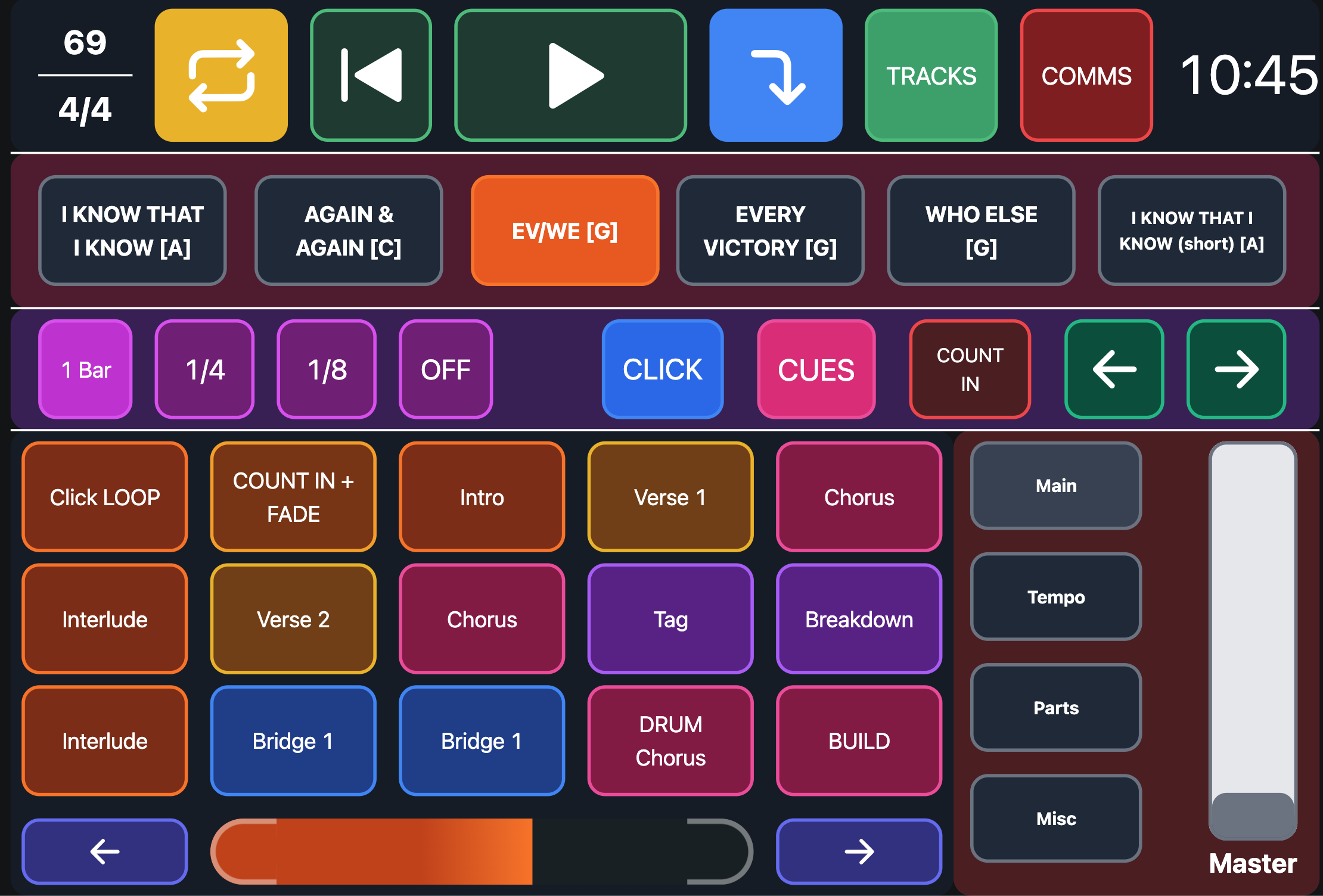
This is starting to sound real complicated, but hopefully it makes sense to you. I’ve attached a screenshot of my current template I’m working on implementing…
Hey @Adam_Molinaro, that looks like a cool control surface!
Unfortunately, changing the page automatically isn’t possible at this time as it would require code that reacts to external changes in OSC values, but this is something I’d definitely like to add in a future beta version before the release.
Displaying and jumping to sections from another song likely won’t be possible for a while as that would require a restructure of how the OSC API works. I hope that’s alright
This setup you’ve made for me has been working awesome!!
Was just wondering if there was a way to slightly edit it (I could have just not copied your coding right though haha)?
What happens at the moment is that I’ll hit next page and it will give me the next 15 sections, though if there’s less than 15 NEW sections, the last section will be the last button and the rest will follow it numerically backwards. What this gives me is some of the sections I had on the previous page as well, I thought it was fine, but I have found it to be confusing and would rather that if there’s more than the prescribed amount of new sections that the buttons are just blank… is there a way I can do that?
This is a bit simpler and removes the limit for how far you can jump forward. Alternatively, if you’d like to keep the limit intact, but still jump by pages, you can do it like this:
Was just wondering with all of the latest updates if it’s now possible to react to external OSC changes? If so, would you be able to help me with getting my section buttons to automatically switch pages when it hits the first seciton on the next page?
You could do this using shared variables, though that would mean when you scroll through your list of sections, those changes will be visible on all devices using the same canvas.
Just replace all local with shared and all setLocal with setShared in your canvas, then add a project script in the settings:
// This ensures that the current section is
// always visible in the canvas section jump buttons
onOscChange("/setlist/activeSectionIndex", ([index]) => {
  if (index !== undefined) {
    const sectionOffset = Math.floor(index / 5) * 5;
    setShared("sectionOffset", sectionOffset);
  }
}, true);
This setup has been working brilliant with these song buttons!
This is the first time I’ve ran into an issue with them and wanted to ask for some help.
I’ve got a song that the sections actually last over 3 pages, which works fine when the project script automatically jumps to that page. The issue is that for some reason I’m not able to use my next page button to actually get to that 3rd page. I can jump back to the other pages from 3rd page, but can’t get back to the 3rd page without cueing a section right before it and letting the project script do it automatically.