Could it be more a MacOS Sequoia issue? 
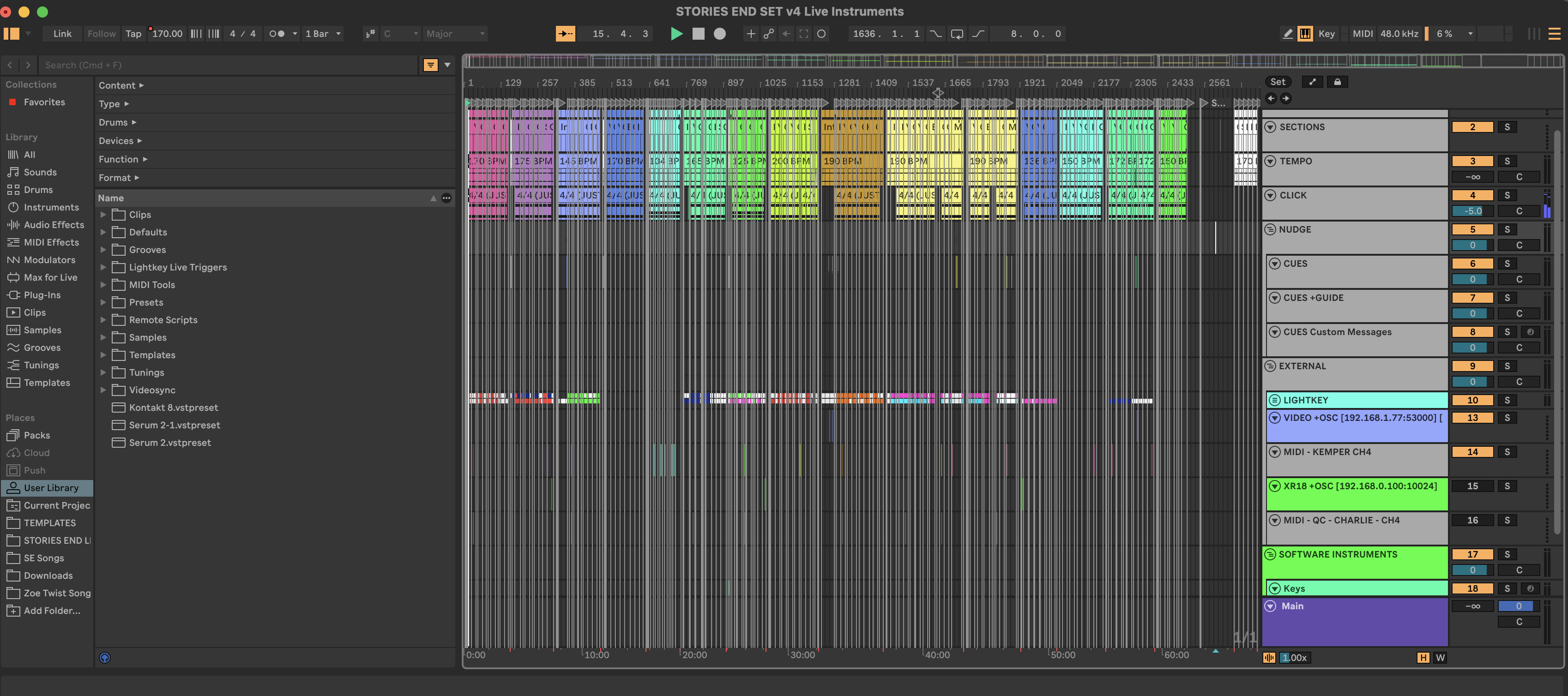
That might be a factor. I’m still running our show MacBook on Ventura and haven’t experienced any audio clip dropouts there. However, I also haven’t experienced any dropouts on my main MacBook running Sequoia 15.5 yet, except directly after adding more than ~100 locators.
@CharlesM1725 would you be willing to share your project so I can try to reproduce the issue on my end? I could test it on Ventura, Sequoia, and the Tahoe Beta to see if I notice any difference. If you like, you can upload the project to my support inbox.
I haven’t been able to recreate it on my personal show file. I have been looking at someone else’s file.
Currently stress testing my project with the added 212 locators but not seeing any disk issue yet and A LOT is happening in this show file ha and I haven’t even saved and re-opened…
I will report back and upload my file if it happens to my show file
1 Like
I’m hoping this is a non-question but are we all using Wavs/Apple’s Wav equivalent?
I’ve noticed similar issues in much smaller projects with far fewer locators when using non-wav files that get resolved by using the crop command. Referenced MP3s with a corresponding Wav in the decoding cache tend to have issues on my end.
1 Like
Has anyone found a solution or workaround to this? I have a show coming up next week that I’ve been setting up the backing tracks for literally all summer and until last week we really had no disk errors… Now the show works great sometimes and doesn’t work at all others… My boss is really ticked at me but I’ve tried everything and can’t figure out what could possibly be the issue… I’m running using a Macbook Pro M1, 16 gb RAM, and the latest version of Ableton Standard… What could possibly be my issue? My session is about 50 gb and I was thinking maybe it’s just too many samples for the computer to handle but I don’t know how that would be disk related at all… Not using any plugins or anything just a bunch of audio files and lifesine to connect to a Playaudio 1u… HELPPPP!!
Hey @Daniel_Gundlach, welcome to the forum!
I’m so sorry to hear that you’re experiencing these dropouts as well. If you’re able to upload the entire project somewhere, could you DM or email it to me along with a video of the behavior and an AbleSet log package so I can inspect this?
You can create one by opening AbleSet’s status window, clicking the settings icon on the top right, and then selecting “Create Log Package”.
I’d also recommend contacting Ableton’s support team via their support page and including the same files. You can mention the case #3054271 as reference. This is the case number of the ticket I submitted.
Hey Leo! I was actually able to fix this issue by lessening the file size in my session! I took everything from 96k audio files to 44.1k and then consolidated all my groups so I took it from 468 to 210 tracks and that allowed the computer the space on the disk to run ableton as normal! Not sure this is going to help anyone on here but figured I’d post just in case! (Took my session from around 50 gb to 17)
1 Like
Hi all, I can confirm that after bumping up my buffer size and zooming into the arrangement (showing roughly ½ to 1 full song at a time), I had much better results. Looking forward to further investigation and more concrete solutions!
1 Like
Hello everyone.
At the beginning, I also had disk crashes, but I’ve managed to minimize them in the following way.
-
Before starting the show, I completely shut down my computer and restart it.
-
I use the same tracks for all songs; I don’t create new tracks per song.
-
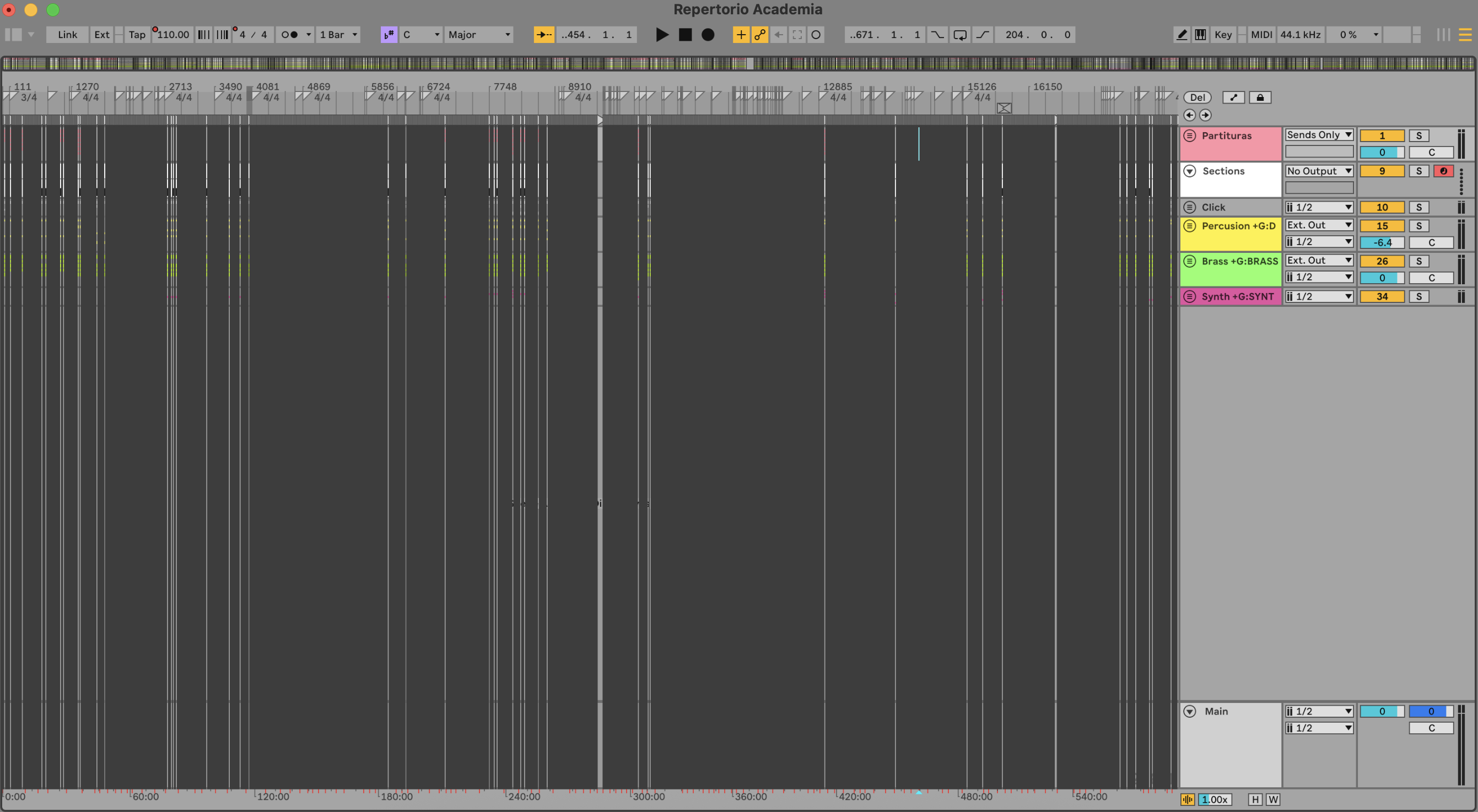
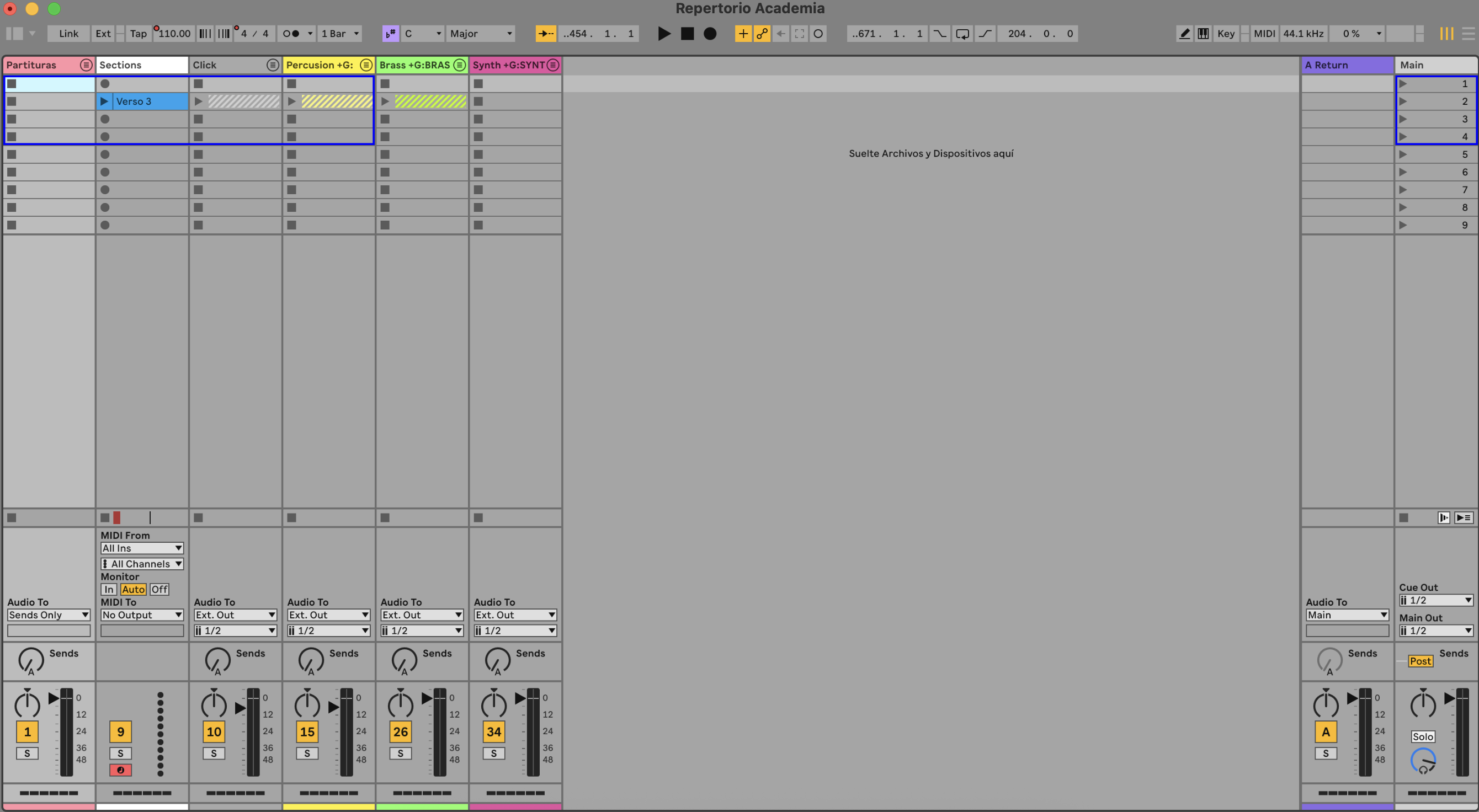
I group all the tracks into groups, in my case, 6 groups (I reduced it to 36 tracks, all “scores,” “sections,” “clicks,” “percussions,” “brass,” and “synths”).
-
I manage the clicks and cues via MIDI; they’re not audio channels (creating a drum rack).
-
I set the sample rate to 44.1 kHz.
-
The buffer size is 1024 samples (if I reduce it by changing the tempo, I get audio clicks).
-
I use the session view, not the arrangement view (this change helped me by preventing Ableton from loading the clip view).
With this, I managed to reduce disk crashes by 90%. And when this happens, just restarting Ableton works fine again.
I use a MacBook Pro M1 Pro and my files are in .mp3 (if I change to .wav, the warp and automation improve, but I don’t have enough space  )
)
I have 108 songs (10 hours of show time), and each song has approximately 30 markers.
My Ableton version is 12.1.1.
I hope these recommendations can help until Ableton fixes the marker issue, since it’s not an Ableton issue.
This is my session:
1 Like
I’m experiencing the IDENTICAL situation. And ironically Live’s CPU for me is running like at 3-4%. So audio drops/Disk overloads should NOT be happening. Ableton did something in one of their updates as I’ve had 30+ songs in a session with well over 100+ locators and session worked flawlessly. The only thing I recently did that saved my show was elimination majority of my locators. I only left the beginning and ending locators. This was not ideal as I typically will jump around in my set while performing, but this was the only workaround that worked for me for my last show.
2 Likes
Short update from me:
I’ve tested the whole thing again in different ways, on several hard drives. I even deleted some audio tracks – but the problem definitely still persists, no matter how big or small the project is.
As soon as I remove all locators and only keep the ones to start and end the song, the project runs stable. But as soon as more locators are added, the issues come back: after two or three songs I consistently get disc dropouts. (It doesn’t crash completely, but the dropouts make it unusable.)
Today I also tried running everything with the latest Ableton Live 12 beta – and even there the exact same problems occur
2 Likes
This may seem like an incredible tedious task but I wonder if this would happen if the locators were manually placed and named properly instead of Ableset’s auto placement with the locators being numbers….
I don’t think that would make a big difference, unfortunately. Once the project is saved to a .als file, both manually and programmatically placed locators are treated the same.
2 Likes
Jumping in to say that I’m having the same issue and have tried EVERYTHING to fix it. I had no problems in 12.1, but decided to upgrade to 12.2 before our last round of reherasals, and had disk read errors every 20 minutes at last weekend’s shows. I’ve tried every other fix with no luck, so now I’m about to start manually rebuilding all of the rehearsal session edits from the pre-rehearsal version of the session in 12.1.
1 Like
Experiencing all of this as well. @cameronsimons has this 12.1 approach helped the issue for you?
Make sure you report this to Ableton. Enough people reporting it should get their eyes on it and investigate
Report this to Ableton. Enough people reporting it should get their eyes on it and investigate
I ended up deleting all non-essential locators and that fixed the problem. CPU also dropped from 5-8% down to 1-2% for the entire show.
But even more bizarre, after deleting locators in a “save as” copy of the session, I went back to the original session (within the same project folder) and now it is working perfectly fine. CPU remains at 1-2% even with all locators still in the session. I’m pretty confident that this is a 12.2 problem. I’m submitting a request to Ableton today, hopefully they fix this ASAP.
1 Like
Been really struggling with this on a tour right now. Losing the click or having it drift because of disk dropouts has been the biggest headache. If I switch to a midi click will that be more stable at the very least? I had always assumed this was the opposite. Downgraded back to 12.1 and still having issues I never saw on our previous leg in May. Will try removing locators today.